

December 17, 2025, 8:59 am | Read time: 6 minutes
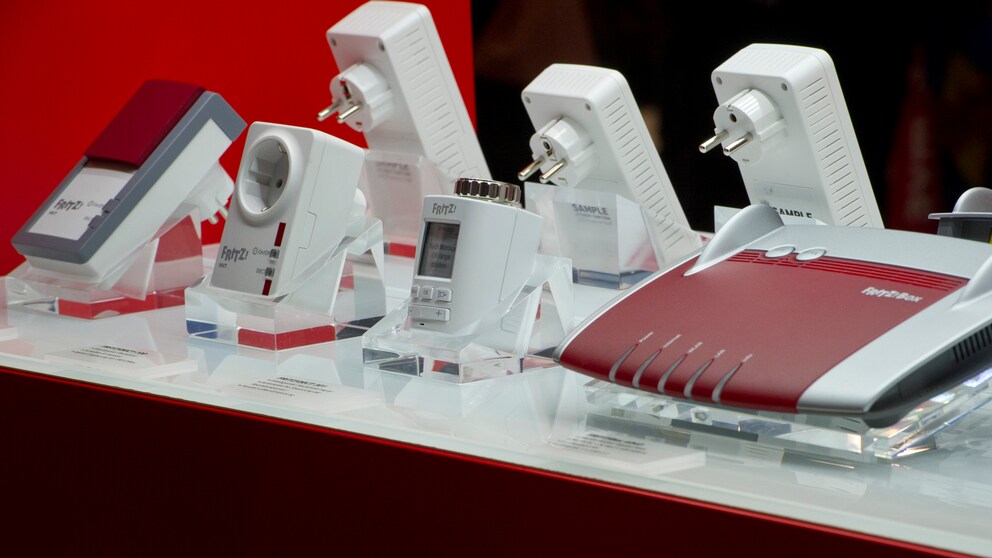
Fritz! (formerly AVM) offers a wide range of smart home devices that can be connected to Alexa via the Fritzbox and the Fritz!Smart Gateway. A firmware update now allows the use of the Matter protocol to integrate devices into the Alexa network.
Smart lights and sockets, door and window contacts, digital radiator thermostats: The Fritzbox manufacturer Fritz! sells a large repertoire of smart home devices. These are connected to the in-house router and can then be controlled using Fritz! wall switches, phones, or the Fritz!App Smart Home for Android and iOS. However, until now, Fritz! devices did not respond to voice commands. This changed with the additional device Fritz!Smart Gateway from Fritz!, which enables the connection of the Fritzbox with Alexa, for example.
Overview
Until September 2024, the Fritzbox could be connected to Amazon’s voice assistant via the popular Alexa skill “fbsmarthome.” Since developer Raphael Pala discontinued his private project, this is no longer possible. The skill used remote access to the Fritzbox to control the connected Fritz! devices with Alexa. Officially, Fritz! never supported this cloud solution and instead worked on implementing the smart home standard Matter, which now allows the connection of the Fritzbox with Alexa, as well as with Google Assistant or Apple Siri.
Requirements for the Connection
For this, you need the additional device Fritz!Smart Gateway. It allows the Fritzbox to access any smart home devices that use the Zigbee wireless standard–such as products from IKEA Trådfri or Aqara–and conversely brings your Fritz! devices into the Alexa app. After Fritz! released the firmware FritzOS 7.63 for the Smart Gateway in October 2024, you no longer need to install an experimental beta version (“Labor”) of the device firmware on the device. Here are the requirements:
- Fritz!Smart Gateway: The device, costing around 75 euros, establishes the connection between the Fritzbox and Alexa.
- Firmware Fritz!OS 7.63 or higher: The firmware adds the necessary Matter protocol to the Smart Gateway.
- Amazon Control Center: This is, for example, an Echo speaker with an integrated smart hub (like Echo Plus, Echo Show, and Echo Studio), connected to the Fritzbox via Wi-Fi or LAN. If you control smart home devices with Alexa, you already have the control center.
- Amazon’s Alexa App: With the app, you bring the Fritz! devices into the Alexa network via the gateway. The smartphone or tablet must be connected to the Fritzbox via Wi-Fi.
- PC or Mac: This is used to display the QR code with which you add the Matter network in the Alexa app.
Control Your Smart Home with AVM Smart Gateway

Unprecedented! AVM Introduces Fritz!Smart Energy 250 at IFA
Setup Steps
Update Fritzbox and Remove Old Connections
If you still have a beta version installed on the Smart Gateway (the menu’s start page shows “BETA” in the top right), you can return to the official firmware by resetting the device to factory settings. To do this, click on System and Update in the gateway menu, then on Return to official Fritz!OS and Reset Fritz!OS in the next window.
If Fritz! devices were previously connected to Alexa via the fbsmarthome skill, remove them first. To do this, tap on Devices in the Alexa app and on each unresponsive Fritz! device, which you remove by tapping the gear icon, the trash can icon, and Delete. If you reset the gateway in step 1, delete it in the Alexa app in the same way. You can recognize the gateway by a generic name like “First Device” and the description “Fritz! smart device” in the device details.
If necessary, update your Fritzbox. This works the same way as with the gateway, see step 6.
Integrate Fritz!Smart Gateway into the Network
Note the Fritz!Smart password from the back of the gateway and plug the device into a free socket, preferably near the Fritzbox. Then connect the gateway to the Fritzbox according to the included quick guide or the online instructions.
Open the gateway’s user interface. To do this, either go directly to the page fritz.smartgateway/ in the browser or open the Fritzbox menu fritz.box/ and click on Fritz!Smart Gateway under “Home Network Devices.” Now enter the gateway password from step 4 in the login window and click Login.
If the device menu shows “Version current” next to the installed firmware version in the top right, proceed to the next step. Otherwise, click on Update available and select Start update. The update takes a few minutes, after which the menu should automatically reappear. If not, you need to reload the browser page once the bottom LED “Connect” on the gateway stops blinking, for example, by pressing the F5 key. Then log in to the gateway menu again.
Finally, click on Smart Home in the three-line menu, then on Devices and Groups, Matter Networks, Link Matter Network, and Start registration process.
Prepare Alexa App
Start the Alexa app, for example, on your smartphone. Click on + and Add Device, at the bottom of the list on Other, Matter, twice Yes, and Scan QR Code. Then scan the QR code displayed on the computer.
Alexa incorrectly indicates that the device is not compatible with Matter–just tap Yes. Shortly thereafter, Alexa reports “Fritz! Hub and x devices found and connected.” After tapping Next, follow the app instructions to set up the Fritz! devices. To simply adopt their names, tap on a Device, then on Set up device, twice Skip, and Next. Don’t worry: You can change the names, device types (lamp or socket), and locations of the devices later in the Alexa app.
After tapping Done, the gateway is connected to Alexa, and the linked devices appear in the associated app. You can now manage all Fritz! devices via the Alexa app, integrate them into routines, and control them via a connected Echo device using voice commands. This even works with DECT devices that do not originate from Fritz! and could only be displayed via the aforementioned skill, such as motion detectors and door/window sensors from Telekom SmartHome.
The Smart Gateway itself may appear in the Alexa app under the name “First Device.” To rename it, tap on it, select Edit Name, replace First Device with something like Fritz!Smart Gateway, and press the Enter key.
Delete User Account for Fritzbox Remote Access
If you have previously used the aforementioned Alexa skill for remote access to the Fritzbox, delete the user account set up for this purpose on the Fritzbox. Here’s how:
- Load the page fritz.box/ in a browser within your home network to log in to the router’s configuration menu.
- After logging in, click on System in the three-line menu and then on Fritzbox Users.
- Click on the small trash can icon next to the account set up for Alexa and then on Confirm. Important: Make sure that only the entries “Internet Access” and “Smart Home” appear under “Permissions,” as shown in the image above, so you don’t accidentally delete your main account.
- Click on the three lines, the three dots, and Log out.