


December 23, 2020, 9:28 am | Read time: 3 minutes
In this series, TECHBOOK presents the best Android hacks and tricks–with video and detailed instructions.
Developed by Google, the Android operating system is the most widely used in the world. Seventy percent of all smartphones today run on Android. The OS is now in its eleventh generation, and with each new generation, it has gained new features–some of which are quite well hidden. In the “Android Hacks” series, TECHBOOK showcases the best and most practical of these features.
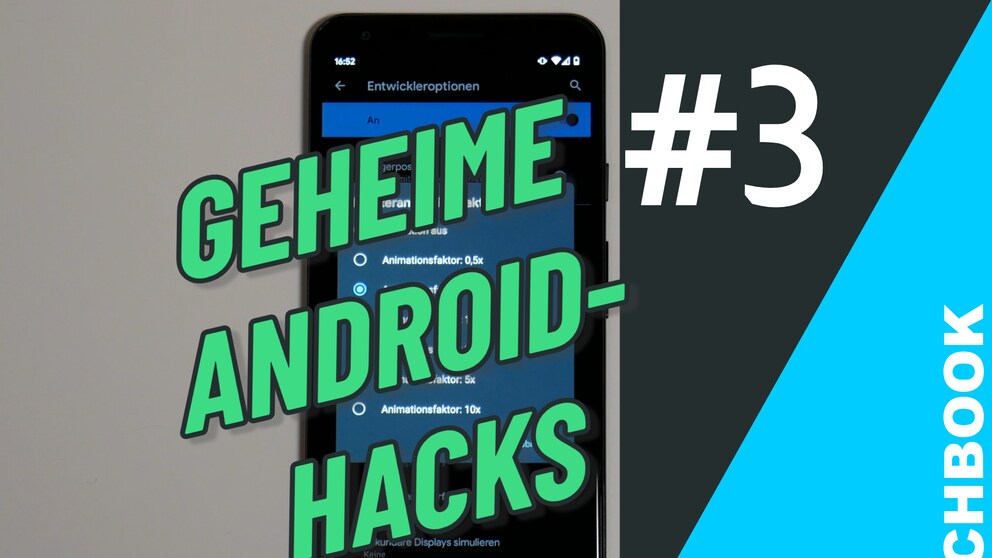
In Part 3, we show you how to access the developer settings in Android. This can help make your smartphone feel faster.
How It Works
1. Open the Android Settings.
2. Select About Phone from the menu.
3. Scroll to the Build Number entry.
4. Tap it seven times and then enter your PIN or password. You will then see the message “You are now a developer.”
4. Go back to Settings and select System.
5. Click on Advanced and then Developer Options.
6. Scroll down to the Display category.
Here, you can reduce or turn off the duration of screen animations in three different options:
Window Animation Scale: Change from 1 to 0.5 or 0.
Transition Animation Scale: Change from 1 to 0.5 or 0.
Animator Duration Scale: Change from 1 to 0.5 or 0.

Find and Lock a Lost Android Smartphone

Record the Screen on an Android Smartphone
What Do Developer Options Offer?
These settings allow you to determine how long animations last when opening windows, transitioning between windows, and for all other animations. By default, animations are displayed at a 1x duration. If the animation scale is set to 0.5x, all animations will be shown in half the time. This makes app opening and switching appear significantly faster. If you don’t mind missing animations, you can turn them off completely. This speeds up operation overall, though transitions won’t be as smooth as with animations.
Caution When Using Settings
Experimenting with developer options is not inherently a security risk. If changing a setting causes any unusual behavior on your smartphone, the developer options can be disabled and reset with a click. However, you should be cautious with the “USB Debugging” option. Incorrect settings can allow strangers access to your smartphone when it’s connected to a PC via USB.