


November 4, 2025, 11:41 am | Read time: 4 minutes
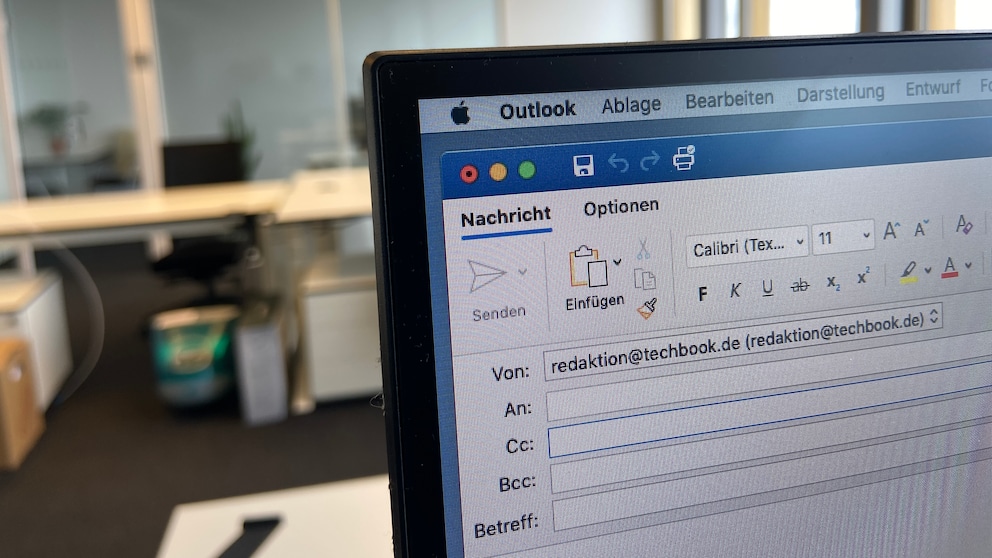
In common email programs, you have the option to add additional recipients as CC or BCC. But what do these abbreviations stand for, and when should you use these functions? TECHBOOK explains.
If you want to send emails to multiple recipients, there are several ways to do so. The most straightforward method is to simply enter all the email addresses in the address field to which the email should be sent. However, especially in a professional setting, there are certain etiquettes to observe. If you are specifically addressing this group and perhaps even expecting a response, you can enter all recipients equally in the appropriate field. But many emails are sent to additional recipients for informational purposes only, without expecting a response. For this, there are the CC and BCC options.
What CC Means in Emails
The abbreviation “CC” stands for “carbon copy.” In German, it translates to “Durchschrift.” Originally, a carbon copy referred to the result of a copying process using a specific type of paper. A document was manually or mechanically created on carbon paper, producing multiple copies at once. The digital “carbon copy” thus corresponds to the concept of an email copy.
If you receive an email where you are placed in the CC field, it generally means: This email is not directly addressed to you but is intended for information or acknowledgment. You essentially receive a copy. A response is often not expected, but it is always possible. Some email program providers label the functions differently. For instance, instead of CC, the word “Copy” might be displayed.
When sending emails to multiple people simultaneously in CC, it is important to note: All recipients can see to whom the message was sent. You should always be cautious here. Some recipients may not agree with their email address being shared through the distribution list, or data protection regulations may prohibit sharing.
The CC function is therefore primarily suitable for team projects or when sending emails within a circle of friends and family. However, press releases or other emails sent to representatives of different companies should never be sent via CC. All listed individuals would be visible to all recipients. For a data protection-compliant email, the BCC function is appropriate.

Gmail gets practical function for sending messages

Google Disables Popular Gmail Features!
What BCC Means in Emails
The abbreviation “BCC” stands for “blind carbon copy.” In German, it translates to “Blindkopie.” If you receive an email and are placed in BCC, you also receive a copy of the message, just like with CC, with the difference that you cannot see who else received the email in BCC. Likewise, others cannot see who received the email via BCC. However, you can still view the CC recipients, regular recipients, and the sender.
BCC thus protects the privacy of individual BCC recipients. It is suitable, for example, for sending an email to larger distribution lists, such as a press release. And with the abbreviation BCC, it can also happen that instead of the three letters, the German translation, “Blindkopie,” is used.
How to Activate CC and BCC in Emails
In principle, every provider, whether Microsoft Outlook, Web.de, Google Mail, or GMX, offers the function. However, the BCC and CC options are not immediately displayed in every program. Sometimes, this function must first be activated in the options. This was previously the case with Microsoft Outlook and Apple’s Mail program. Nowadays, CC and BCC can be selected with a click when composing a new email.
If, when creating a new email, only the CC option is displayed, you can proceed as follows: Open a new email and go to the header field, often located directly next to the send icon. Here, you can usually select the “Blind Copy Address Field.” Alternatively, there is often a dropdown menu in the recipient area that provides these options.