

July 21, 2024, 7:54 am | Read time: 6 minutes
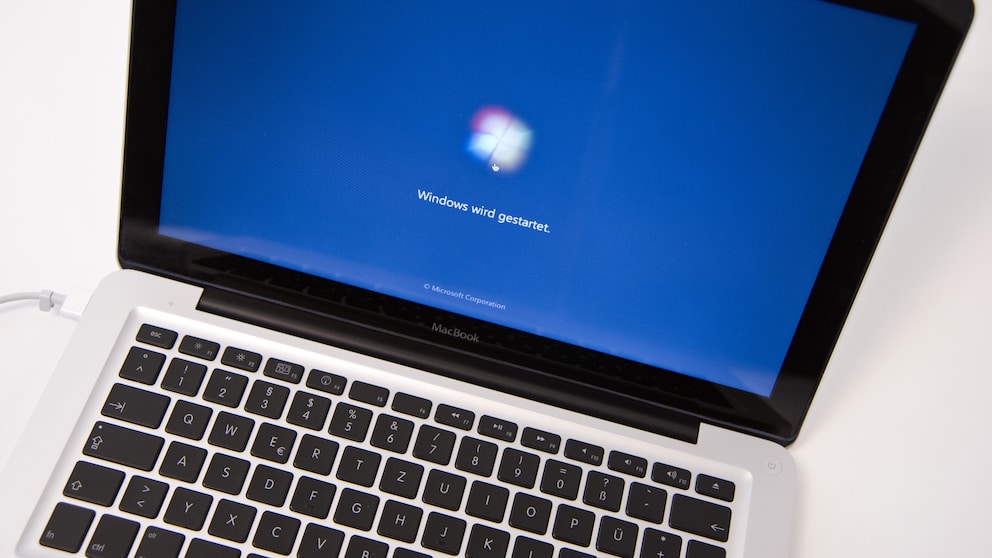
The computers with the apple logo have a loyal fan base. But despite all their advantages, it can sometimes be necessary to access another operating system. TECHBOOK explains how this works.
Mac users appreciate the stability and integration with other components. However, occasionally another operating system is required. A classic example is software for tax returns or accounting, which is available for Windows but not for Mac. Keeping a separate computer just for that? That seems a bit excessive. So how can other operating systems be used on a Mac?
Which Mac Type Is Used?
In general, the possibilities of how and which additional operating systems can be run in parallel depend on the type of Mac. In 2019, Apple made a significant change to its hardware. Previously, the company used Intel chips in its computers, which are also used in many Windows PCs, but since 2020, it has been using its own Apple Silicon. The first chip in the series, the M1, was first used in the MacBook Air, MacBook Pro, and Mac mini. Now, with the M2 and M3, there are two successors, and the entire Mac lineup, including the Mac Pro, has been switched to Apple Silicon.
If you’re unsure which processor type is in your Mac, you can click on the Apple menu and execute the command “About This Mac.” It will then say either “Intel Core” or “Apple M.”
A Brief Warning
Apple has optimized its operating system for its own components and guards the corresponding source code. As a result, while installing other operating systems is possible, not every function and configuration will work smoothly after installing a second operating system (except for another macOS).
It is essential to perform a complete backup with Time Machine before any further installation!
Also read: The most important keyboard shortcuts for Mac users
Using Windows and macOS on a Mac
There are two main ways to use Windows on a Mac.
- Using a virtual machine, such as with the program Parallels Desktop.
- Parallel installation of Windows on the same computer and switching at system startup.
In a virtual machine, software provides a PC within the operating system. So, macOS is started as usual first. Then, the virtualization software is launched, which starts the “computer” with Windows on the Mac. Important in this context: A valid Windows license must be available.
If It’s a Mac with Apple Silicon
The chip architecture of Apple Silicon does not allow direct parallel installation (“Dual Boot”) of Windows directly on the hard drive. Therefore, the only option is to use software to create a virtual machine.
Without going too deep: The basic commands within the processor differ between M-chips and the processors of classic Windows computers. Therefore, only a special version of Windows (“Windows 11 on ARM”) can be installed and used this way.
Mac with Intel Chip
The parallel installation of macOS and Windows looks better on a system with an Intel processor. For this, Apple provides its own program called Boot Camp, which is located in the utilities under macOS.
It is well-documented and guides you step-by-step through setting up the Windows environment on the Apple computer. However, an external USB drive with at least 16 gigabytes of space is required for the installation. It should already use modern flash storage. A classic external hard drive with magnetic storage is unsuitable.
Also interesting: YouTuber starts Windows XP in 2024 – the result is surprising

These MacBooks Will No Longer Receive macOS 27

“I’m initially skeptical about the new MacBook!”
Using Linux and macOS in Parallel
What applies to the installation of Windows also fundamentally applies to setting up the open operating system Linux, regardless of which distribution is used.
Mac with Apple Silicon
The easiest way to use Linux is also through virtualization software. However, the previously mentioned limitation applies here. Since the M-chips are based on ARM architecture, only a Linux variant for ARM can be used in the virtual environment.
A surprisingly simple solution is the installation of Asahi Linux. To install this distribution, just open a terminal on the Mac and execute a simple command (curl https://alx.sh | sh). This opens an installer that guides you through the next steps.
Asahi Linux is still in the development phase. After installation, not all Mac functions will be available, such as Touch ID. The project page (https://asahilinux.org) provides information about these limitations.
Conveniently, a boot manager is also installed here, allowing you to choose between Linux and macOS right after turning on the Mac.
Intel Macs
For an (older) Mac with an Intel processor, the entire world of current distributions is available. Before a second operating system can be installed, space must first be created using the Disk Utility. To do this, another partition is created and marked as “empty.” It should meet the minimum size of the desired Linux distribution.
Then, a boot medium (CD-ROM, USB stick) for Linux is created. The instructions on the respective project pages explain this in detail. The Mac is then started from this medium. The installation follows.
A Second macOS on the Same Computer: Is That Possible?
The Mac, even with an M-chip, is much more accessible when it comes to installing two different macOS versions on the same computer. The setup is straightforward, and the Apple computer allows switching between the two systems at startup.
- In Disk Utility, select “Add APFS Volume” after marking the current hard drive.
- To keep things organized later, it’s advisable to give the second system a “descriptive” name.
- Now, a version of macOS can be retrieved from the App Store.
- The installer asks at the start on which drive the setup should occur. Here, select the newly created volume.
You can switch between systems at startup (hold the Option key when turning on) or through System Preferences: Select the desired system under “Startup Disk.”