

August 12, 2023, 6:35 am | Read time: 8 minutes
Streaming services, shopping websites, social media, banking apps, and transportation companies–the list of platforms and service providers we use daily is seemingly endless. And everywhere, you can quickly set up an account or install an app. But no one can or wants to remember all those login details. Password managers are the helpers of the hour. TECHBOOK has examined which ones are particularly secure and practical.
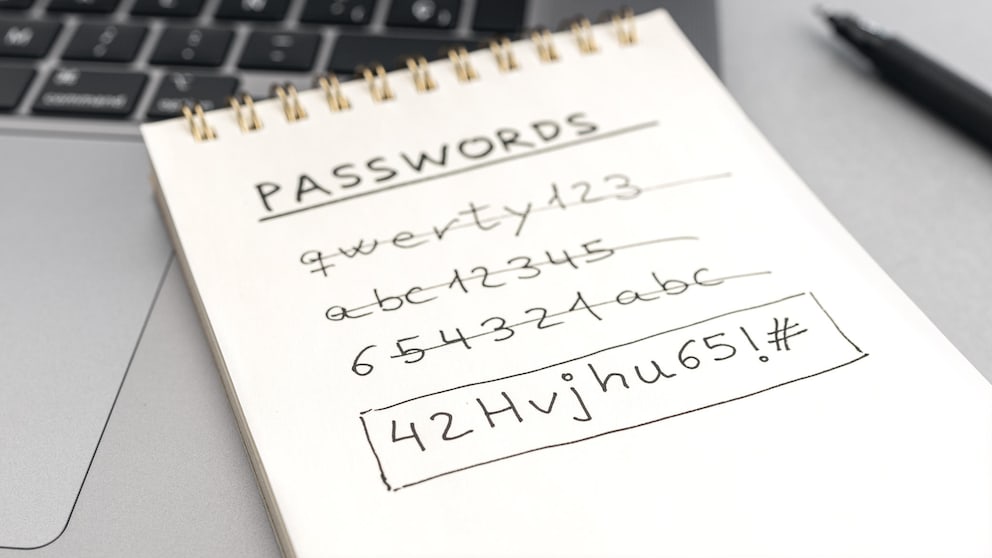
Do you remember the notebooks or paper lists where you meticulously recorded login details and passwords, only to hide them somewhere on the bookshelf? Sure, you can still do that today, but it’s not particularly secure. And it’s certainly not practical when you’re sitting on a train, bus, or in the office and want to quickly log into an online shop or book your next vacation. Often, you find yourself asking: Uh, what was my password again? And where do I quickly jot down the login details for the newly created account now? A password manager on your smartphone, laptop, or device of choice can be a real help.
Overview
Password Managers Should Be Well Protected
But how secure are these apps and services, to which you entrust all your login details? (Except for the ones you forgot to write down and hope you never need again.) The concept of password managers is quite simple. They collect all login details and secure them with a master password. This super password is–at least for users–also the biggest weakness of the digital keychain. It must not be too easy to crack, yet you must be able to remember it well. If the main password is forgotten, the password manager is as useful as a locked safe at the bottom of the nearest lake. If you don’t trust your memory, the paper method for this one password might become attractive again–provided you find an excellent hiding spot.
Alternatively, you can use a text file with password protection on a well-kept USB stick. This form has another advantage in the event of your death. “Heirs can thus take care of the digital estate in a structured manner,” explains Jennifer Vanessa Kaiser from the Consumer Center of Rhineland-Palatinate. But even without thoughts of one’s mortality, many users already work quite naturally with a password manager, often without realizing it. We’re talking about browser solutions–some of which, however, have a dangerous security gap.
Also interesting: Forgot your Wi-Fi password? 6 tips to get it back
Browser Solutions from Firefox, Safari, and Chrome
When you create a new account on any website, the helpful browser often asks if you want to save the login details. On your next visit, you don’t have to manually enter your username and password; instead, the browser automatically fills them in. Apple’s Safari uses the iCloud Keychain for this, providing access to login details on all devices with an active user account. Chrome works similarly, using the Google account. Firefox uses the Firefox account with the Sync service or the Lockwise program.
As convenient as this is in everyday life, there is an annoying downside for some users: Those who frequently switch between browsers must either remember where each login detail is stored or save all data in all browsers. Or commit to one browser in the future.
And in terms of security, there is a glaring flaw with the browser solutions from Firefox and Chrome. These browsers store passwords unsecured. Thus, anyone with access to the affected device also has access to the login details stored in the browser. Only Apple’s Safari stores the data in a password-protected keychain. In practice, this means Safari only fills in login details on a website after you enter the device password or, on a smartphone, the PIN, or alternatively verify with Face ID or fingerprint. Especially with the latter two methods, the effort of this detour is hardly significant but greatly increases security.
Read also: How Google wants to replace passwords with “Passkeys”
How to Ensure More Security with Mozilla Firefox
With Mozilla Firefox, you can activate this little extra mile by setting Firefox to protect login details in the integrated password manager Lockwise with a master password.
- To do this, open the Firefox browser and go to “Settings.”
- Now select the menu item “Privacy & Security” and scroll to the section “Logins and Passwords.”
- Here you can make various settings, including “Use a master password” and set a master password that you can ideally remember well.
If you now feel the need to store this master password in a secure place or generally want to securely save your login details independently of a browser, a password manager app is recommended.
Read also: What you should know when booking doctor appointments via Doctolib
What a Password Manager Must Be Able to Do
Experts have long advised using complex passwords, and especially with AI support, passwords are becoming increasingly easier to crack. Therefore, it is even more urgent than before: Use long, preferably nonsensical passwords with plenty of numbers and special characters. Password managers already come into play here, as they can generate passwords of various security levels. However, a secure password is often a difficult to remember password. You could say that password managers create their necessity–at least to some extent–themselves.
There are other aspects a good password manager must fulfill. The application should have a secure file storage and, if possible, be transferable to multiple devices. After all, most services, accounts, and apps requiring a login are used on multiple devices. On websites and in apps, the password manager automatically fills in the data and completes forms and payment details. If the password manager identifies a password as too weak, it should offer the option to replace it with a stronger one. Additionally, some password managers include darknet monitoring and alert users to security breaches. However, not every password manager includes all features, and especially with free versions, compromises are often necessary.

How to Find the Right Browser

What to Do if You Forget Your Apple Keychain Password
The Safest Free Password Managers
The list of truly secure and completely free password managers is quite short. However, it’s worth looking at the trial versions of paid services or using their free versions with limited functionality, such as Bitwarden. Unfortunately, as is often the case with password managers: money or convenience.
KeePass
KeePass is a completely free password manager that can easily compete with paid models in terms of security. The database encryption uses Advanced Encryption Standard (AES) and the Twofish algorithm. As KeePass is an open-source project, the program code is publicly accessible and constantly improved and monitored. However, setting up the app requires some prior knowledge or at least research if you want to use the full range of features. For importing passwords from browsers or automatically filling in login details, you need to install additional plug-ins. The biggest challenge, however, is that KeePass is officially only usable for Windows, so users of Android, iOS, and macOS rely on third-party apps. These are usually also open source, ensuring an adequate level of security.
Read also: Changes in applying for ID cards and passports
The Safest Paid Password Managers
Bitwarden
Bitwarden stands out with its comparatively low price of 10 euros per year. Bitwarden includes all necessary functions and is even an open-source project. The handling is straightforward, weak master passwords are not allowed, and the sync process runs automatically.
Keeper
Keeper is one of the more expensive services at 42 euros per year. It includes practically all common functions, such as logging into websites via Face ID or fingerprint. Additionally, there is the option for emergency recovery, and Keeper also assesses the strength of a password. If desired, you can add darknet monitoring, which is already included in the price with other password managers. Those who value controlling the sync process themselves will not be completely satisfied with Keeper, as the service does not allow user-owned servers or alternative solutions.
Dashlane
Dashlane is available as both a desktop app and a web application. Both versions are intuitive to use and offer a wide range of features, especially automatic login and user data storage. However, the app is no longer being developed. Depending on the subscription–Advanced or Premium–Dashlane also includes a VPN, but it is relatively expensive at up to 53 euros. The permanently free version, on the other hand, is limited to one device.
1Password
1Password by AgileBits is a very useful password manager that fulfills all relevant functions and even offers one or two additional features. The service supports Windows, Android, macOS, iOS, Linux, and ChromeOS. It also includes the travel mode feature, allowing users to completely remove sensitive data from the device and store it on 1Password’s company server. The feature is intended for travel to countries that may demand access to your smartphone or PC. After the trip, you can deactivate travel mode, and the data is automatically restored. Similar to Dashlane, 1Password is in the higher price segment.
Enpass
Unlike many other password managers, Enpass does not store user data on a central server. Instead, users can decide whether to store their passwords in a cloud, directly on the device, or in a home Network Attached Storage (NAS). However, a minimum level of technical knowledge is required. Additionally, Enpass is the right choice for those who don’t want to deal with a subscription, as there is also the option for a one-time purchase.