


May 12, 2025, 7:51 am | Read time: 3 minutes
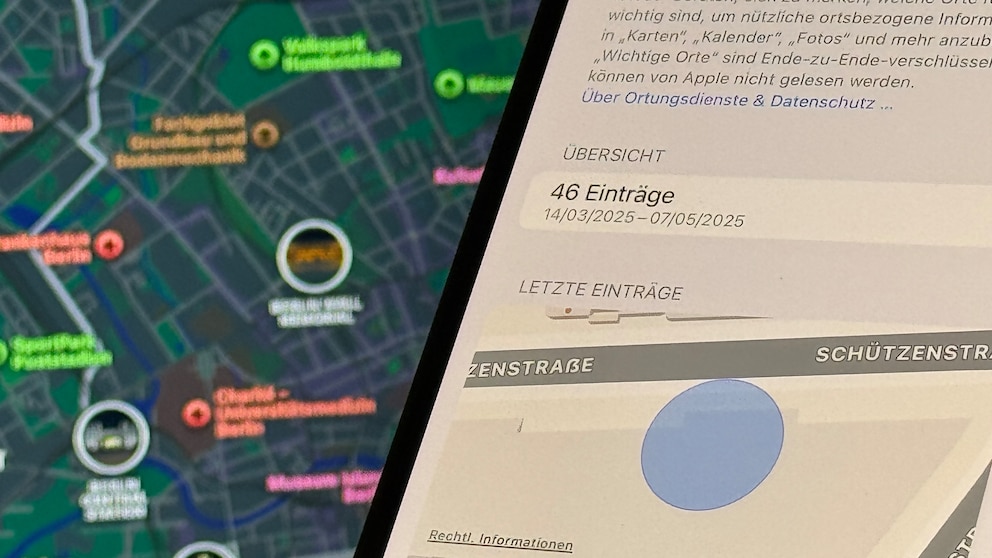
The iPhone keeps a precise record of where users have been. It stores this information in a hidden list–complete with timestamps and maps. TECHBOOK shows where to find it.
Whether GPS is on or you’re just connected to the cellular network and Wi-Fi networks–the iPhone always knows your location thanks to location data. But that’s not all. It even meticulously logs when you visit and leave a place. This overview is hidden deep in the iPhone settings.
TECHBOOK editor Adrian Mühlroth tried it himself. In the past three months alone, his personal iPhone created a total of 237 map entries. With our guide, you can find out what your iPhone has collected about you.
Finding the Significant Locations Map on the iPhone–Here’s How
1. Open Settings on your iPhone and scroll to Privacy & Security.
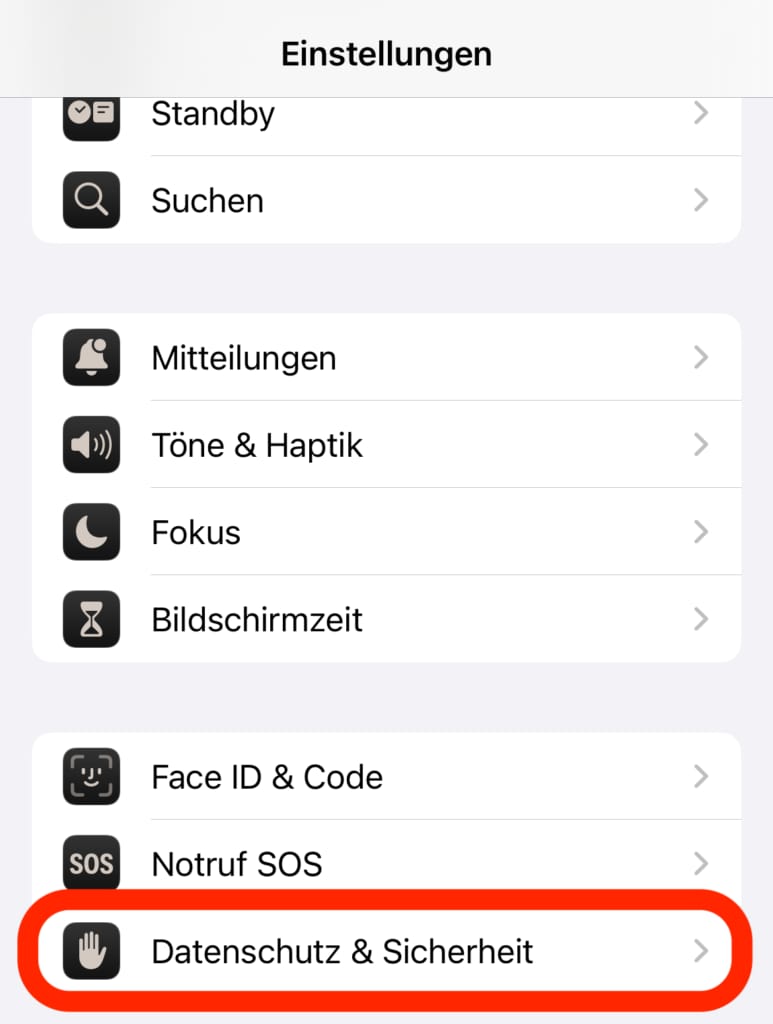
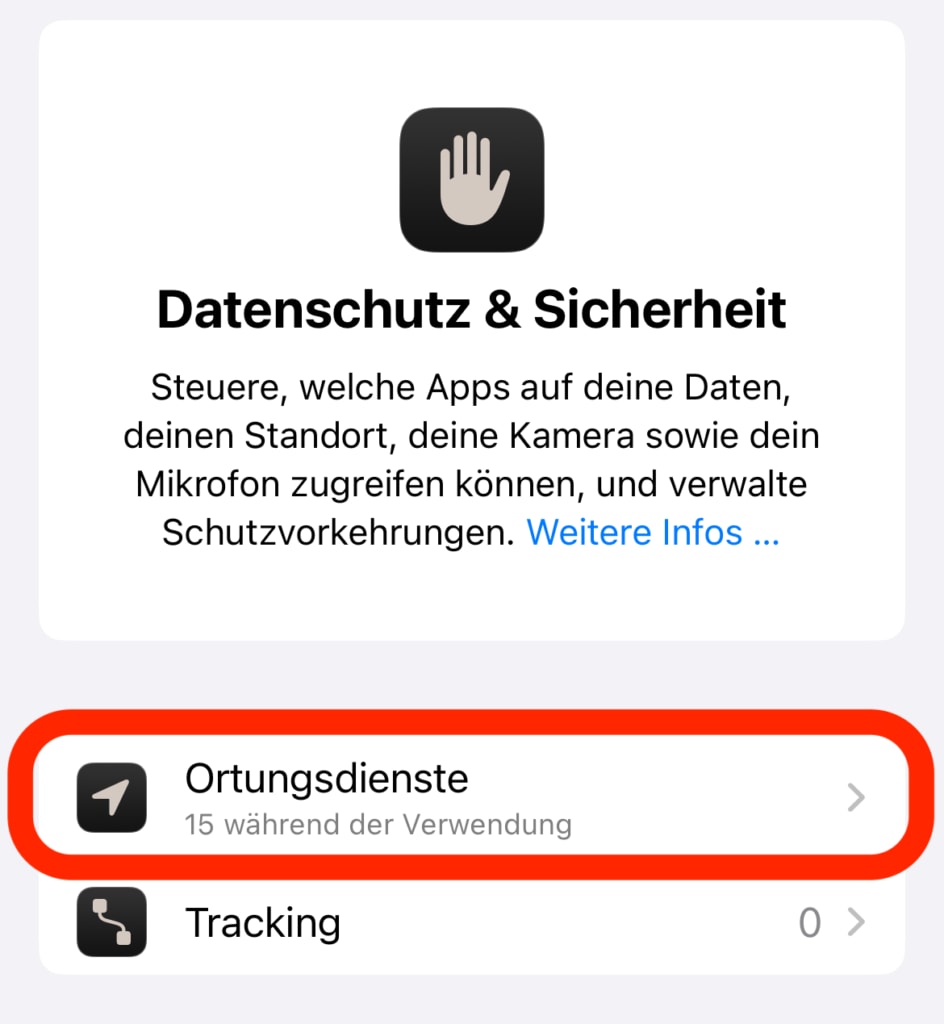
2. In the Privacy menu, tap on Location Services.
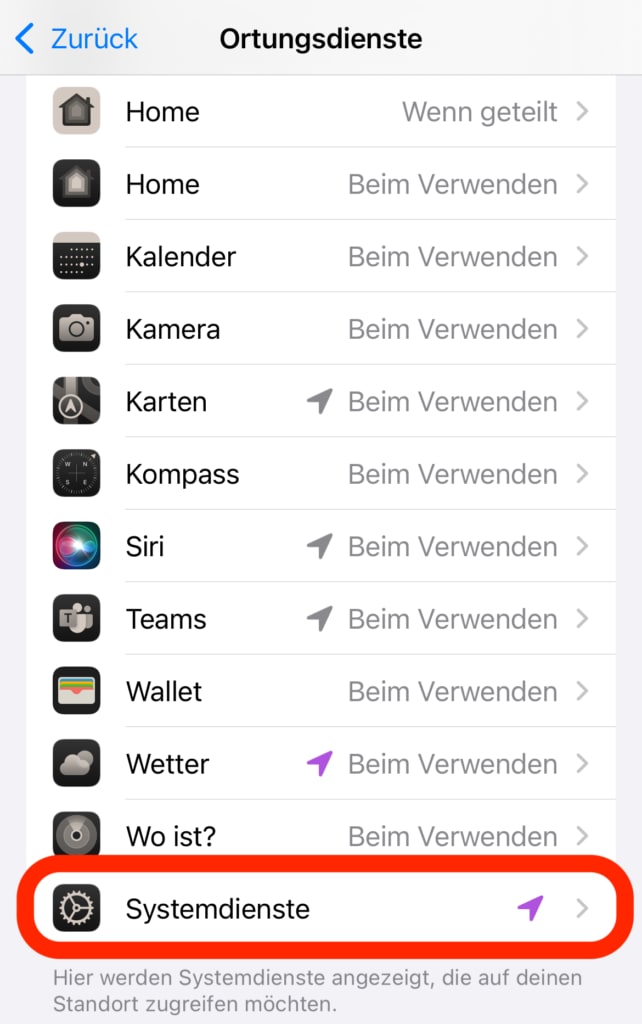
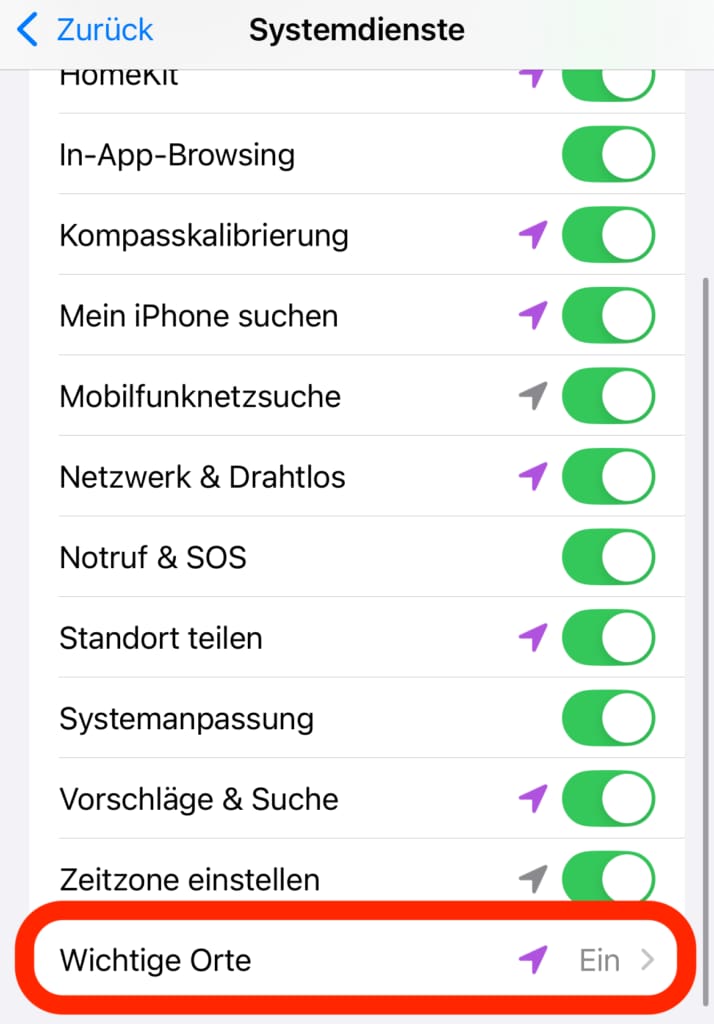
3. Scroll to the bottom of the page and tap on System Services.
4. Here you will find the option Significant Locations. Select it. Unlocking with Face ID or Touch ID is required here.
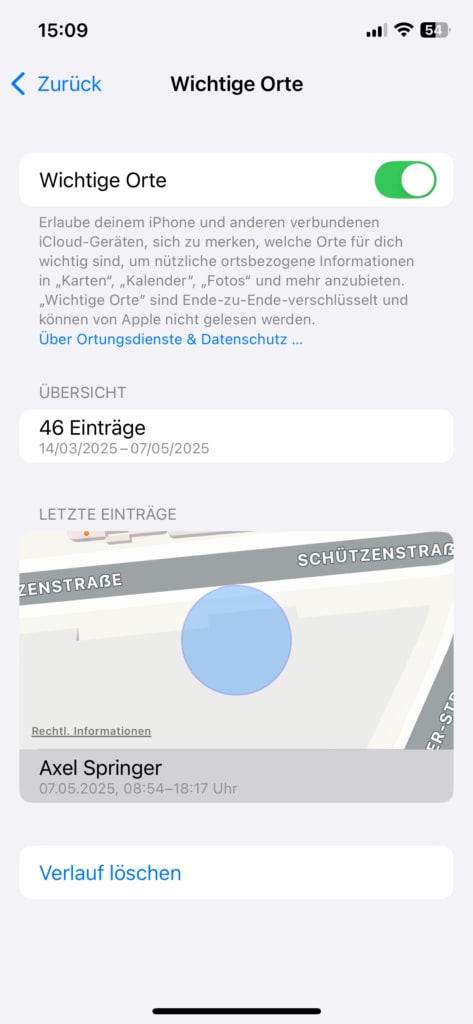
5. Under Significant Locations, you will now find the latest entries with a timestamp–provided the locations were recorded by the phone. Tap on an entry to see the location on the map. The iPhone automatically recognizes where you have been, such as a restaurant, store, or museum.
Also interesting: Have you discovered the hidden calculator on the iPhone?

18 iOS Features You Should Know

Ten Little-Known Features of Google Maps and Apple Maps
Overview Limited Since iOS 17
In earlier iOS versions, the iPhone’s Significant Locations map displayed an overview of all places visited in the past three months. These were grouped into localities where smaller locations like restaurants, hotels, and stores could be found on a map.
Now, the overview only shows the latest location entries, each with a map location and timestamp. There is no longer a large overview map for each locality. Users also cannot easily access all places visited in recent months. This is only possible with a trick.
To find older entries, users must go to General>Date & Time in settings and disable the Set Automatically option. Then, they can set a specific date. The Significant Locations overview will then show the visited locations for that day as entries.
How Useful Is the Hidden iPhone Map?
According to the Apple Support page, Significant Locations data is used to personalize location-based services. For example, they help with predictive planning of a route in Apple Maps and improve the design of memories in the Photos app.
However, from a privacy perspective, tracking significant locations is not without concern. Practically anyone can easily recognize a movement pattern from the history and map, revealing where you live and work. Therefore, Significant Locations data is additionally protected with Face ID or Touch ID, beyond the iPhone lock. If that’s not enough for you, you can also completely disable the Significant Locations option, delete the history, and be on the safe side.