

November 17, 2023, 3:52 pm | Read time: 9 minutes
One-handed mode for the keyboard, screen recording, or faster scrolling–iOS is packed with practical features.
iOS is a well-thought-out operating system that receives new features with each update. However, many small tricks and tweaks are not always obvious and are sometimes hidden in the menus. TECHBOOK highlights 18 iOS features every iPhone owner should know.
Hidden iOS Features in the Control Center
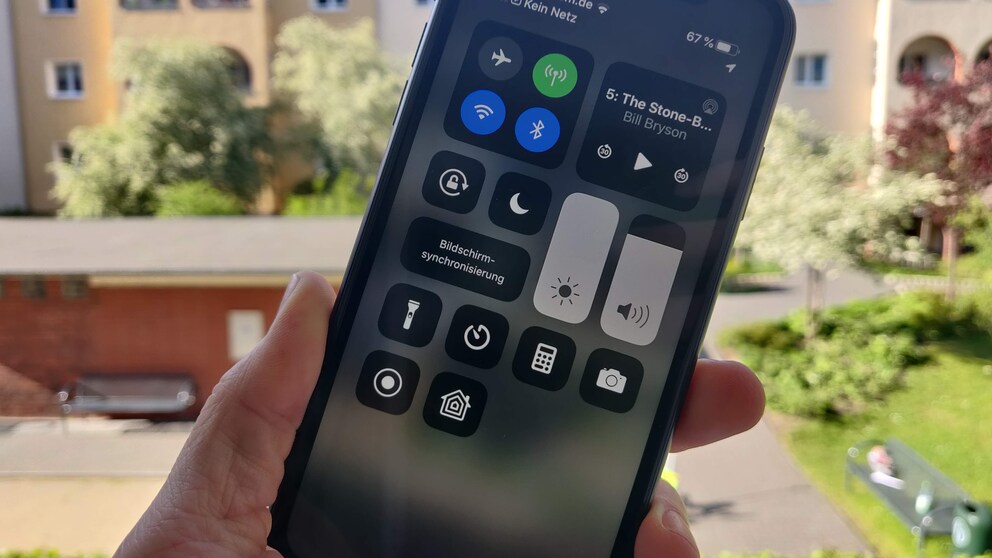
The so-called Control Center offers quick access to important settings–with a swipe from the top right down (or from the bottom up on iPhones with a Home button). From here, you can toggle Wi-Fi and Bluetooth, adjust brightness, and control playback.
Access the Control Center by swiping from the top right down on iPhones with Face ID or from the bottom edge up on iPhones with Touch ID.
Flashlight, Timer, and More
You can even access the timer and flashlight directly here. By pressing and holding the individual functions, additional options often appear–give it a try.

Wi-Fi and Bluetooth
The buttons for Wi-Fi and Bluetooth are a special case. Since iOS 11, they no longer directly turn off the respective function but only interrupt the current connections with the Wi-Fi network or a Bluetooth device until the next day. The radio modules in the iPhone remain active!
There are hidden menus here as well. Press and hold the Wi-Fi or Bluetooth symbol, and an overview appears where AirDrop and hotspot options also show up. Press and hold one of the symbols again, and another window appears where you can select from a list of Wi-Fi networks or Bluetooth devices. Additionally, a button for accessing Wi-Fi or Bluetooth settings appears. Click on it to go to iOS settings and completely disable Wi-Fi or Bluetooth.
Screen Recording in iOS
Since iOS 11, it’s possible to easily record a video of the iPhone screen. You just need to add the corresponding button to the Control Center, which can be done via Settings and Control Center. Under Customize Controls, you can select the Screen Recording option.

To start a recording, simply open the Control Center and tap the newly appeared button. After a three-second timer, the recording begins. Once finished, the video is saved in the Photos app.
Quick Access on the Lock Screen
If you’ve missed a notification, you can check directly from the lock screen to see what’s been happening on your iPhone recently: Simply swipe up from the middle of the lock screen to see what you’ve missed.
Music Recognition
Through settings, you can add Shazam music recognition to the Control Center for easy access. Of course, it also works via Siri–whichever you prefer.
Advanced Calculator
When you open the calculator on the iPhone, it initially looks like a regular office calculator. However, the app has a trick up its sleeve: Rotate the iPhone 90 degrees, and the keypad shifts to the right, revealing a new field with numerous additional functions. You can not only set brackets but also perform square roots, exponentiation, trigonometric functions, and factorial calculations.
Another handy trick: Although there’s no button to delete individual numbers or characters, a simple swipe left or right over the display field performs this function.
Activate One-Handed Keyboard in iOS
If you want to type a message but only have one hand free, iOS offers an option to make one-handed typing easier.
To activate one-handed mode, press and hold the globe or emoji symbol on the keyboard. Depending on whether you use multiple keyboards, the symbol on the key next to the 123 button may vary. A small menu will pop up, allowing you to choose which side of the display the keyboard should shift to.
Scan QR Code
If you encounter a QR code, you no longer need an extra app to scan it with an iPhone–the iPhone’s camera app is sufficient. Point it at a QR code, and the information will automatically be suggested at the top of the screen.

Offload Apps
Storage space is a scarce commodity. That’s why Apple allows you to offload rarely used apps to the cloud to save space. Documents and data entered into the app remain secure during this process. Offloading apps is not the same as deleting an app.
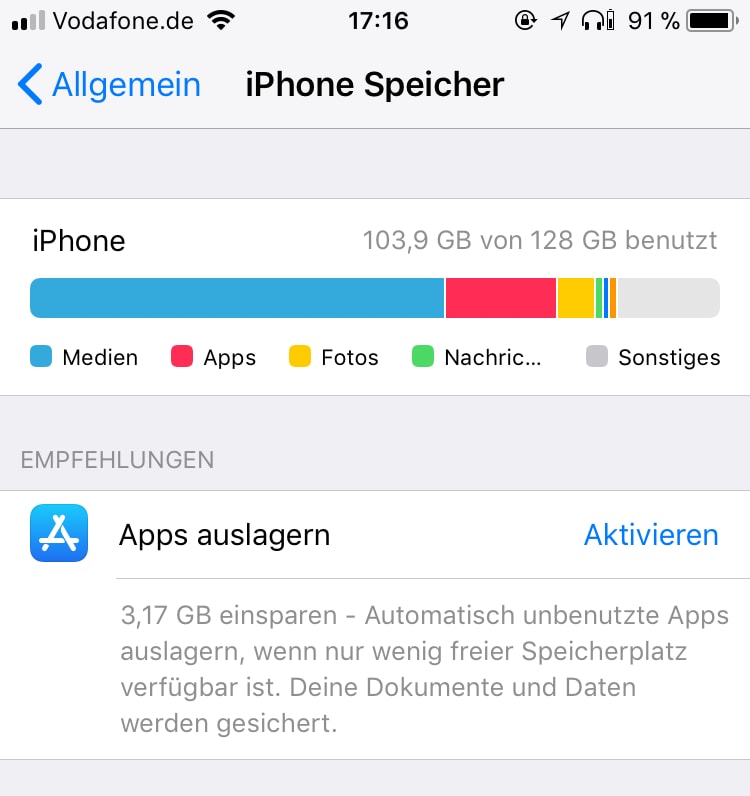
To activate this feature, go to “Settings,” then “General,” and “iPhone Storage.” Here, you can tap “Enable” under “Offload Apps.” However, keep in mind that Apple’s own cloud service, iCloud, also has limited storage space. Additional capacity must be purchased for a fee.
Spotlight Search and App Library as iOS Features
The iPhone has an excellent search function that can find and open practically anything. Swipe down on the home screen to access it. You can now call up apps, contacts, emails, notes, images, and even iOS or iPhone functions.
The iPhone’s home screen is quite rigid. If you don’t want to place all apps there, you can find them in the App Library, located on the last page of the home screen. All apps are neatly categorized there. If the path seems too long, all apps can also be found via Spotlight.
Share Wi-Fi Password via iPhone
You can easily share your Wi-Fi password with guests if they also have an iPhone. Your guests just need to have your Apple ID (phone number or email address) in their contacts and then click on your network in the Wi-Fi settings.
You will receive a request on your Apple device and simply need to confirm it–done. A detailed guide on sharing can be found here: How to Share Your Wi-Fi Password from iPhone.
Emergency SOS
Since version 11, there are additional safety features: Apple has integrated an SOS function that allows you to quickly and easily call for help and also disable Touch ID on the iPhone to prevent unauthorized access.
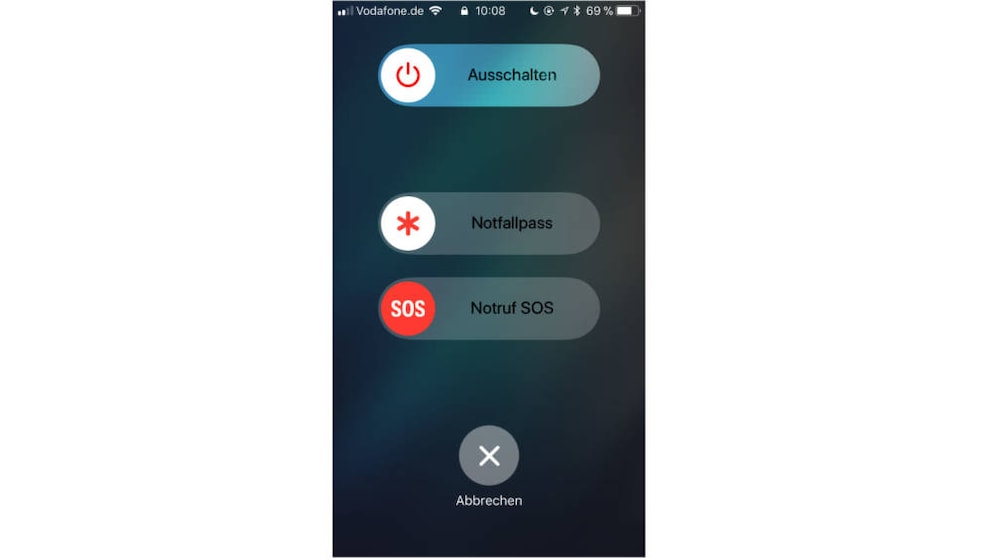
For the SOS function, starting with iPhone 11, 11 Pro (Max), Xs (Max), Xr, and X, hold the lock button and one of the volume buttons for five seconds. On iPhone models with a Home button (including iPhone SE and iPhone 8), press the lock button five times in succession. Additionally, you can add emergency contacts and set up an automatic call in the settings under Emergency SOS.
Feature Creates Movies from Photos and Videos in iOS
When you open the Photos app, you’ll notice that iOS organizes content by date and sometimes location. You can select a specific group of photos and videos that belong together–such as from vacations or outings–as an album. Click on the three small dots in the top right corner in the month or day view and select Play. The app then combines all photos and videos from that time into a movie and starts playback immediately.
Simply tap the screen to pause and adjust the mood of the movie (such as “sentimental,” “cheerful,” or “epic”) and the playback length. You can save the movie by clicking the box icon in the bottom left and then on Save Video. Automatic videos only work in the “Months” and “Days” views, not in “Years” and “All Photos.”
Level in the Camera
The perfect little feature for those who love to photograph their food or objects from above–iOS has a built-in level directly in the camera to ensure you’re shooting straight down.
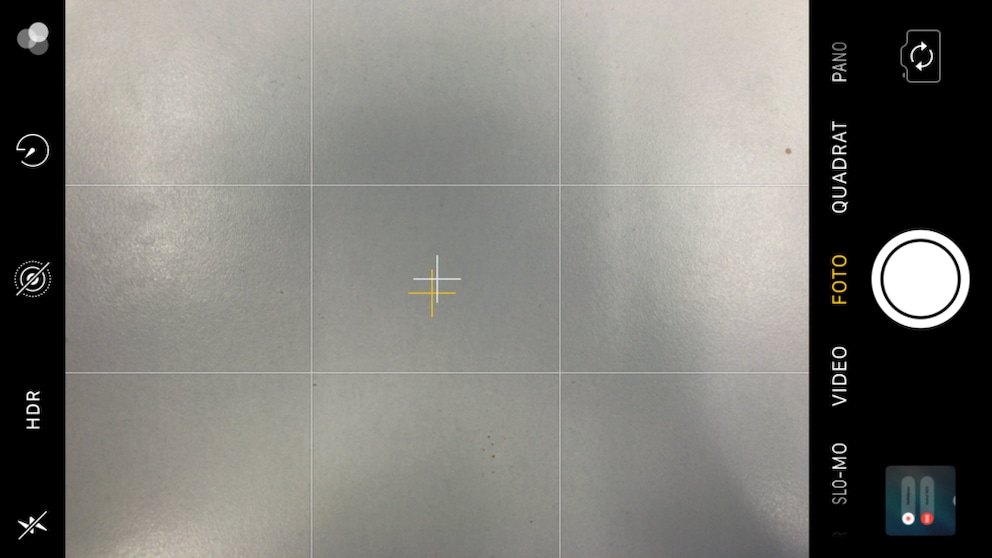
The feature is hidden in the camera settings: On the iPhone home screen, select Settings and then “Camera” to activate the “Grid” option. Now, guide lines appear in the camera, and when you shoot straight down with the iPhone, two crosses automatically appear in the center of the display. Overlay them, and you’ll be shooting perfectly straight down. This also works when shooting upward.
Globally Disable Notification Previews
When you receive a notification on the iPhone, you can immediately learn something about its content on the lock screen–the first words of a WhatsApp message, for example. However, this also means anyone can read the notifications without unlocking the iPhone.
iOS has a handy feature to prevent this if desired. Through settings and then “Notifications,” you can select when a notification should be readable under “Show Previews” and globally disable previews for all apps.
Burst Mode in the Camera
The iPhone camera has a practical feature that allows you to take multiple pictures in quick succession. The so-called Burst Mode is activated by holding the shutter button and swiping left. The longer the button is held, the more pictures are taken. A small counter keeps track of how many have been captured.

Also interesting: How to Backup an iPhone Without iTunes

Apple Reveals the Best iPhone Tricks

Nasty iOS-27 Bug Freezes iPhones
Faster Scrolling as an iOS Feature
If you want to reach the bottom of long documents or web pages, it can be annoying to constantly swipe on the screen to scroll. Fortunately, Apple has hidden a trick that makes the process significantly easier.
Simply pull the page slightly up or down with your finger until the scroll bar appears on the right edge. Hold the slider in the bar until you feel a vibration and the slider widens. Now, by continuing to hold the slider and dragging up or down, you can quickly scroll to the end or beginning of the page.
Search Photos by Keywords and Locations
Google demonstrated it with its Photos app and artificial intelligence (AI), but Apple has long since caught up. In the Photos app in iOS, there’s a Search option at the bottom. You can enter any search terms like “cat,” “car,” “mountaineering,” or “beach,” and the app will search your images for these tags. You can also search your photos by specific locations.
iOS then gathers all images taken at that location and displays them as an album–you can even create a movie from them. More interesting, however, is the overview map. No matter which photo you open in the app: Swipe up, and a map appears showing the location where the picture was taken. Click on Show Nearby Photos to see all the places where photos were taken and even small previews of the respective images.