


February 10, 2023, 6:53 pm | Read time: 2 minutes
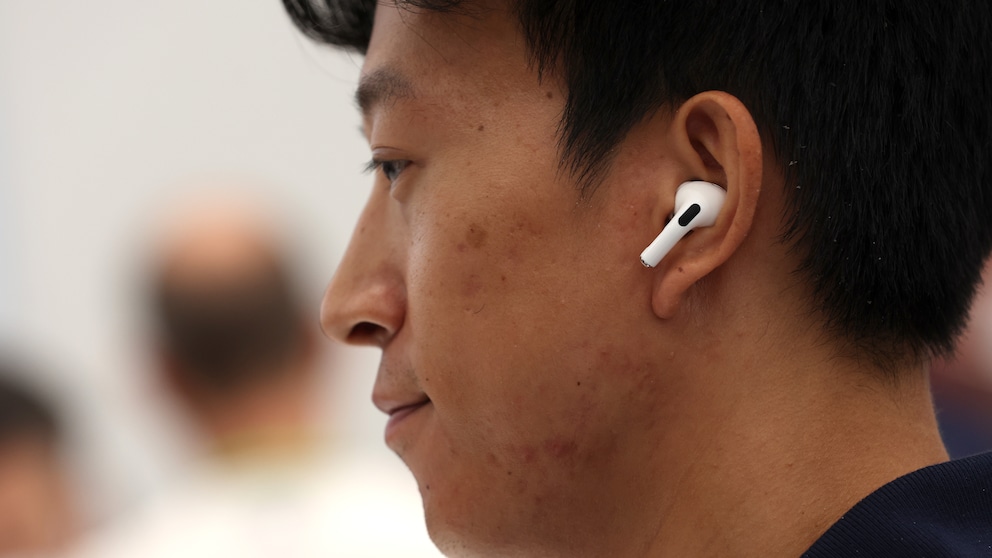
Apple equips AirPods with many features that are often well hidden. One of them can potentially be misused as a spying tool. TECHBOOK conducted the test.
Did you know that Apple headphones can be used as a hearing aid? With the “Live Listen” feature, AirPods can help you better understand a conversation partner in a noisy environment.
Live Listen enables remote eavesdropping
The feature was introduced in 2014 to use the iPhone as an external microphone for MFI-compatible (“Made for iPhone”) hearing aids. Since iOS 12, you can set AirPods as a hearing aid, allowing Live Listen to work with Apple headphones. This is significantly cheaper than actual hearing aids, which can easily exceed the thousand-euro mark.
It is essentially an accessibility feature for the hearing impaired to better understand conversation partners. However, users on Reddit quickly recognized its potential for misuse. An external microphone that can be several meters away–even in another room–is an excellent spying tool.
TECHBOOK tested whether this really works. You can see the result in the video here:
From Translator to Fitness Tracker–How Clever the New In-Ear Headphones Are
Annoying Beeping from the AirPods Charging Case? Apple Reveals the Reason
Activate Live Listen on the iPhone
An iPhone running at least iOS 14 is required for the accessibility feature. Live Listen works with AirPods, AirPods Pro, AirPods Max, Powerbeats Pro, and Beats Fit Pro. Other Bluetooth headphones do not support the feature.
https://oembed/techbook/affiliate/1fffeaa22321093db3f9b5f0a838b2206ae0dcf059743d311a1519d59aa3b40b/b6e44ea0-940f-43c7-93ea-971f6546c765/embed
To turn it on, you first need to add the accessibility feature to the Control Center. Go to Settings and then to Control Center. Press the green plus next to the Hearing option if it is not already among the included controls. Now open the Control Center, and an icon with an ear symbol will appear. Select this and then click on Live Listen to activate the feature.
Please use the accessibility feature only if you really need it. Refrain from misusing Live Listen for eavesdropping purposes.
Source
- Apple Support: “Use Live Listen with AirPods or Beats” (accessed February 10, 2023)