



March 19, 2024, 2:53 pm | Read time: 4 minutes
Google is the dominant search engine on the internet, and Google Maps has long been established as a map and navigation application. Since both services belong to Google, they are generally well integrated, allowing easy switching between search and Maps. Previously, when searching for locations in the browser, users could rely on the convenient integration of Maps on the results page. However, in many cases, this is no longer possible. TECHBOOK has conducted some tests and explains why this change has occurred–and how to bypass the new feature.
Overview
Interactive Map from Google Maps No Longer in Search
The new Digital Markets Act (DMA) has recently come into effect in the EU. The European Union aims to weaken the monopolies of major tech companies like Meta, Apple, and Google, allowing for fairer competition. As a result, Google was compelled to make numerous changes, which may include “difficult compromises,” as the company states.
This also affects the search function. In total, more than 20 changes have been made, and some features have been removed. The company does not specify which ones, but the lack of support for Google Maps has become noticeable.
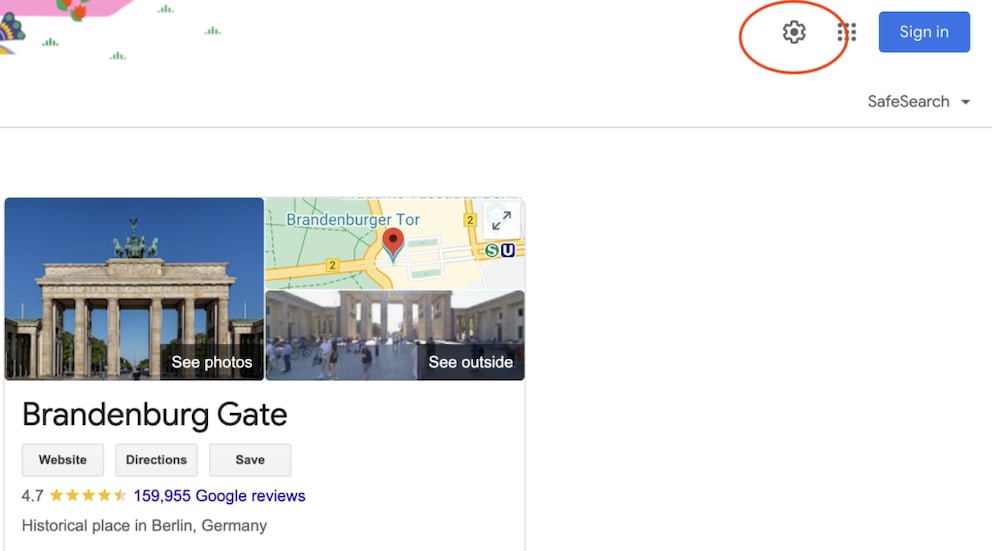
Previously, in the so-called Knowledge Graph–the info box in search results–an interactive map was always available, but this is suddenly no longer the case everywhere. For example, on a desktop computer, the Brandenburg Gate only shows a tiny snippet that can no longer be clicked. It is not suitable for general orientation within the city or route planning, as it is effectively just a screenshot. Additionally, the Maps filter below the search field has disappeared.

Also interesting: 12 Tips to Make Google Search More Effective
Google Maps Change Confuses
What stands out in self-tests is the current lack of consistency. Depending on the search term, the results page may still display an interactive map. It also makes a difference whether you search on a desktop or a mobile device. The mobile search for the Brandenburg Gate provides a map that must be enlarged first but is then interactively usable.
In contrast, our search for “Cinema Hamburg” reveals the exact opposite: The map snippet is not interactive on mobile devices, whether Android or iOS, but is on the desktop version. Meanwhile, searching for “Sushi Berlin” currently (as of March 19, 2024) provides a map on all devices that can be moved, enlarged, or reduced.
However, users generally have the option to open the tab for directions. This takes them directly to Google Maps–though this is a detour that was not previously necessary.


Why Regularly Clearing Your Browser Cache Matters

Google Makes Its Services More Personal
Users Are Frustrated–But There’s a Simple Solution
Unsurprisingly, this change is not well received. On platforms like Reddit, users complain about this situation. “Drives me crazy,” one comment reads, “I hate it so much,” says another. According to one user, “Europe really knows how to create dumb internet regulations.”
Resourceful tinkerers have found their own solutions to this problem and share them with others. Besides software developments, there is also a help that everyone can easily apply: Simply change the search region. For example, we set it to the United States–and suddenly the Maps integration works again. Whether this is a permanent alternative remains to be seen.
How to Change the Google Search Region
Desktop
On a desktop computer, you can proceed as follows:
- Click on the gear icon in the top right corner of Google Search and then go to “Language.”
- At the bottom, simply select the desired region–choose a country outside the EU for the trick to work. We successfully tested it with the USA and the UK.
Also interesting: The 7 Creepiest Places on Google Maps
Android Phone
We tested the following instructions on a Samsung Galaxy S21 FE:
- Press the user profile icon in the top right corner of Chrome.
- Then go to “Settings” and then “More Settings.”
- At the top, the option “Language & Region” appears, where you can make the appropriate selection.
iPhone
We followed these steps on an iPhone 15:
- Press your profile icon in the top right corner of Chrome.
- Scroll down to “More Settings” and select “More Settings” again in the top tab.
- At the top, press “Language and Region” and go down to “Result Region.” There you can make the change.