


July 1, 2024, 3:02 pm | Read time: 4 minutes
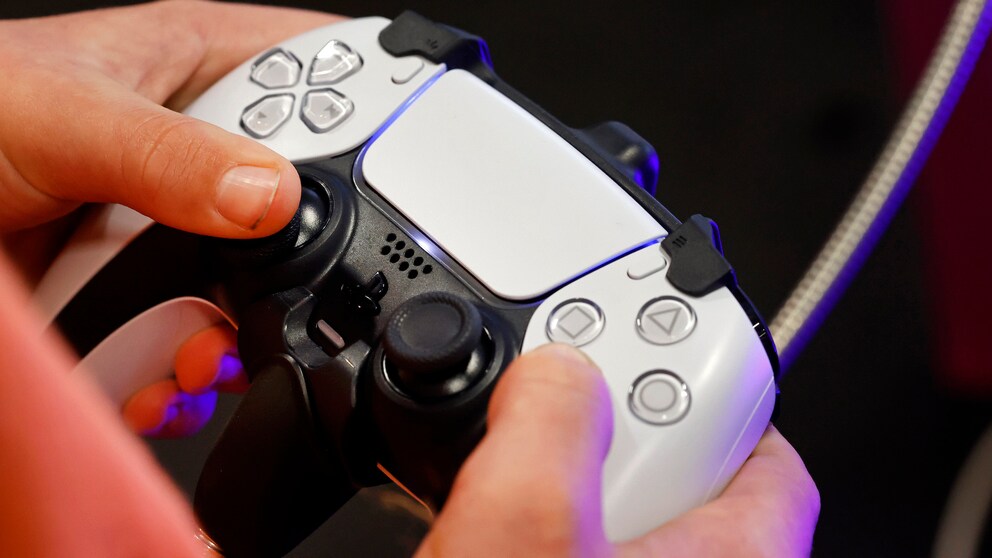
The PlayStation 5 comes with many new features, including a microphone in the PS5 controller. A related setting should be adjusted immediately after purchase.
The PlayStation 5 has been on the market since late 2020. It remains very popular, thanks in part to its strong game offerings. But the hardware itself also impresses with state-of-the-art technology and innovative functions. The microphone in the PS5 controller is one of these innovations that new console owners should address as soon as possible. TECHBOOK explains why this is a good idea.
Microphone in PS5 Controller Is On by Default
Since the PS4, the input device for the game console has also been about sounds and speech. Back then, Sony introduced a small speaker that emitted sound effects and game commentary at certain moments. For the current generation, the manufacturer expanded the functionality to include a microphone in the PS5 controller. Since then, speech can not only be played back but also recorded.
For the new voice control of the PlayStation 5, a built-in microphone is a practical addition. It’s also useful for exciting online matches with other players and saves the need to buy a proper headset. However, there’s a small but significant catch: The microphone in the PS5 controller is always on by default. The fact that this puts more strain on the PlayStation 5 pad’s battery is the least of the problems.
Also interesting: DualSense V2 – Sony is working on a PlayStation controller with AI
PS5 Registers Private Conversations
Unlike a proper headset, where the microphone is directly in front of your face, you usually hold the controller in your hands, further away from your mouth. Accordingly, the microphone in the PS5 controller is very sensitive and picks up more sounds and voices from a distance in the room. And as “digitalcourage” writes, you can sometimes eavesdrop on private conversations of other people this way. These can even be of an intimate nature and are certainly not meant for strangers’ ears.
There’s also a confusing design decision: A light on the controller turns on when voice recording is off. This is especially counterintuitive because it works the opposite way on other devices. Many may not even be aware that the microphone is on and picking up voices–a nightmare for privacy advocates.
Enabled Microphone Violates GDPR
This is clearly in contradiction to the GDPR. Article 25 of the regulation states that “by default, only personal data that is necessary for the specific processing purpose should be processed.”
Responsible parties must take appropriate measures to “ensure that personal data is not made accessible to an indefinite number of natural persons by default without the intervention of the person.” In the normal state, no technology should be able to spy on its users.
PlayStation 5 for 399 Euros on Black Friday

PlayStation 5 Update Introduces Major Changes
What the PlayStation Terms of Use Say
Sony itself addresses the recording and use of “ugc” (“user generated content,” i.e., content generated by players) in its own guidelines, especially in points 11 and 14. While the manufacturer also argues with security and compliance with terms of use and legal regulations, Sony reserves the right to license and sell “ugc” if necessary.
Relevant information for this can include “your content, voice and text messages, game videos, the time the activities took place, as well as the location of the device through which they were conducted, your real name, your PSN online ID, and your IP address.”
Permanently Turn Off Microphone in PS5 Controller
If you don’t want the console to listen in, you can simply press the corresponding button on the controller to turn it off. Don’t forget: Only then does the light turn on.
If you don’t want to do this every time, you can opt for a permanent alternative. Here’s how to do it quickly and easily:
- Access your PS5 settings and navigate to “Sound.”
- Then select “Microphone” and set the “Microphone status when logged in” to “Mute.”
Now it is off by default. However, you can turn it back on at any time with the press of a button.