



January 27, 2024, 3:54 pm | Read time: 5 minutes
Our homes are becoming increasingly connected. For the home network to function, it needs a sufficiently fast and, above all, stable internet connection. But what if the Wi-Fi has issues and the Fritzbox isn’t working as it should? TECHBOOK reveals how to find the cause of your Wi-Fi problem and, of course, how to fix it.
Nothing is more frustrating than a non-functioning home network. The causes of poor Wi-Fi coverage can be varied–and they don’t always have to do with the router. Is the slow connection perhaps due to a sluggish line, are there outages in the network, or even other sources of interference? Fritzbox owners can find this out in a few steps and improve their Wi-Fi reception.
Overview
Diagnosis via Fritzbox or App
The Fritzbox interface is designed so that users can make many settings themselves, even if they are not technically savvy. Additionally, AVM offers several apps that complement its hardware, helping with network setup and troubleshooting.
Start Function Diagnosis via Fritzbox
To find out if your Fritzbox is running smoothly or if it’s responsible for the Wi-Fi problem, proceed as follows: Connect the computer to the router via a network cable (LAN). Then access the Fritzbox menu. To do this, simply enter 192.168.178.1 or https://fritz.box in the PC browser. The router interface will open, where you need to log in.
On the left, you’ll find the menu with its sub-items. Click on “Diagnosis” in the navigation and then on the sub-item “Function.” Here you can start the function diagnosis, and the Fritzbox will search for errors in the home network.
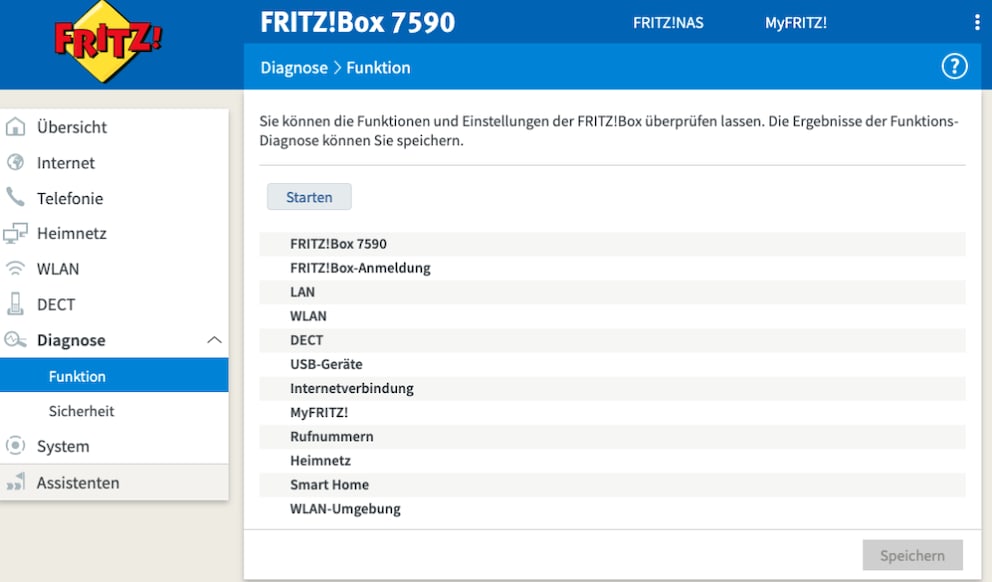
Conveniently, you can also see how many devices are connected to your home network, whether they are operating on the 2.4 or 5 GHz band, and the average data rate of your line in upload and download.
If all home network components are marked green after the test, your home network is functioning properly. Otherwise, the Fritzbox automatically indicates where the issue lies. If a gray question mark appears, the menu prompts you to provide a phone number for a test call. A blue exclamation mark means parts of the Fritzbox are turned off, while a cross on a red background indicates the internet connection was interrupted. Typically, the menu will tell you what to do for each message. More information can be found on the AVM website.
Read also: With this trick, no one will find your Wi-Fi anymore
Wi-Fi Check with the Fritz!App WLAN
Another option for Fritzbox users to identify and resolve potential Wi-Fi issues is the Fritz!App WLAN from AVM. The Fritzbox manufacturer offers it for free for both Android and iOS.
Even the position of the router or any Wi-Fi repeaters used in the apartment or house can be crucial for connection quality. The app can help find the perfect location for the devices. If users hold their smartphone with the app at a spot where the Wi-Fi connection fluctuates, the app measures the connection strength and Wi-Fi speed in real-time and rates them as very good, good, or even poor. Users receive hints on whether they need to reposition their Fritzbox and can test the new position immediately. Sometimes, it’s enough to move the router a bit higher, such as on a cabinet, or more centrally in the room.
The app also lists all detected wireless networks in the vicinity and shows whether they might be interfering with each other. It could be that the neighbors’ devices, with their strong signals, are affecting your home network. If this is the case, users can switch the channel to one with fewer devices.
Checklist for Wi-Fi Problems with the Fritzbox
If you can’t open or use the Fritzbox diagnosis or can’t find a solution to a problem, use the following tips to improve your Wi-Fi connection and locate errors:
- Ensure your Fritzbox is powered. You should see this from the status lights on the device.
- Check the Wi-Fi light on the router. If it blinks continuously, there is likely a problem with the line, such as a network outage. In this case, you should contact your provider.
- If the LED on the Fritzbox is continuously green, the line is not affected, and the Wi-Fi network is stable. It is worth identifying other potential sources of interference using the methods mentioned above. Perhaps a corner of the apartment simply receives too little bandwidth.
- To check for internet connection issues, you can perform a speed test in the Fritzbox.
- If the Wi-Fi light is on continuously, but you can’t find the network on your smartphone or computer, try restarting the router.
- If network disruptions occur continuously, then try the secret power mode.
- Also, ensure that the current software is installed.
- If you received the Fritzbox as a loaner from your internet provider, they can assist with problems.