

January 20, 2023, 7:06 am | Read time: 4 minutes
Have you ever noticed that the iPhone’s battery indicator sometimes appears white, red, or even yellow? TECHBOOK explains what this means.
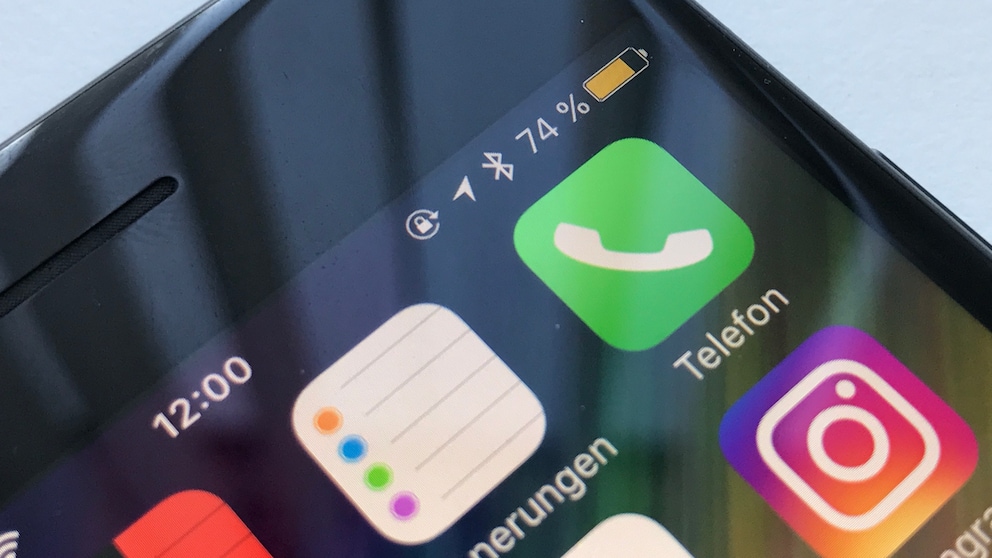
Normally, the battery indicator on the iPhone is white and turns red when the charge drops below 20 percent. However, some users are puzzled when the symbol suddenly turns yellow. There’s a simple explanation for this.
Overview
When low on charge, the iPhone wants to save energy
The yellow battery indicator signifies the iPhone’s built-in low power mode, which aims to extend battery life when the charge is critically low. If the battery level falls below 20 percent, the iPhone automatically prompts you to activate the mode. If you decline, the iPhone will persist and ask again when the battery reaches 10 percent.
When you activate low power mode, the battery indicator turns yellow. If the iPhone charges back to more than 80 percent, the indicator disappears, and the normal white battery symbol returns. However, if you don’t charge the iPhone to 80 percent or manually turn off the mode, it remains yellow. This can result in low power mode being active even when the battery level is relatively high.
Turning low power mode on and off
If you wish, you can manually activate and deactivate the energy-saving function: Simply open Settings and tap on Battery. Here, you’ll find a switch to turn low power mode on or off.
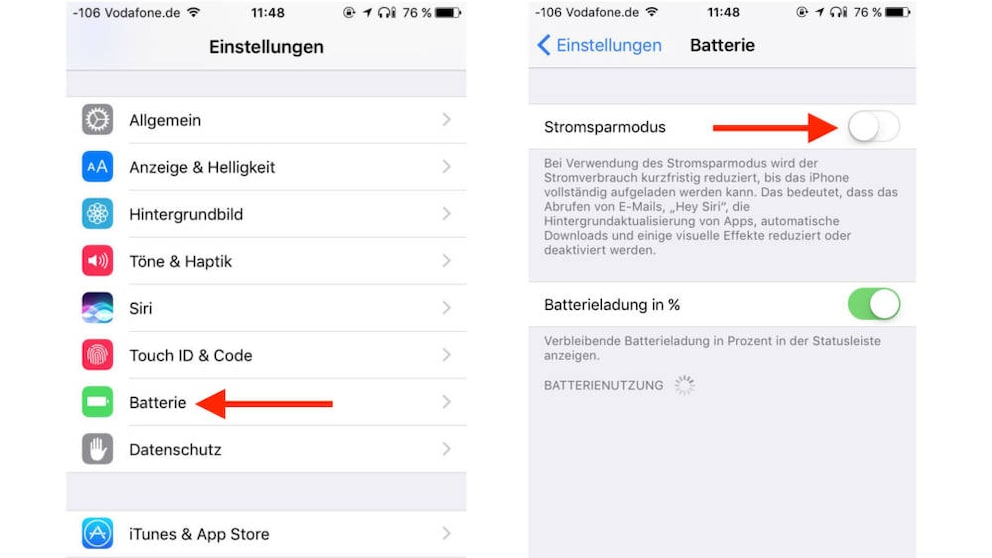
Photo: TECHBOOK
Alternatively, you can ask Siri to activate low power mode or set up a shortcut. You don’t need to worry about deactivating this mode: Once you plug the phone into a power source and the charge level exceeds 80 percent, low power mode is automatically deactivated. The battery indicator on the iPhone then switches from yellow back to the usual white.
Also read: Clearing RAM significantly speeds up the iPhone

Why You Should Not Use AirPods with Android

Poor Battery Life on Your iPhone? This Feature Might Be the Culprit
Permanently activating low power mode
Unfortunately, iOS does not offer the option to permanently enable low power mode in the battery settings. This could be useful for longer trips. However, there is a way to bypass this limitation.
1. If you haven’t already, download the Shortcuts app from the App Store.
2. Open the app and select the Automation tab.
3. Click on the option Create Personal Automation.
4. Scroll down and select the entry Low Power Mode.
5. Change the preset to When>Low Power Mode>Is Turned Off and click Next.
6. Press Add Action.
7. Enter “Low Power Mode” in the search bar and open the entry Set Low Power Mode.
8. Ensure the setting shows Turn Low Power Mode On and click Next.
9. Now, deselect the option Ask Before Running with the slider, click Done, and then on Don’t Ask.
Then manually activate low power mode once in the settings or via voice command. As soon as the device attempts to turn off the mode, the automation kicks in and ensures that low power mode remains permanently on. This is indicated by the yellow battery indicator on the iPhone.
The drawbacks of low power mode
If you’re considering keeping low power mode on permanently, you should know how the iPhone achieves longer battery life. To save power, background app refreshes are generally restricted, and automatic downloads are disabled. The iPhone fetches emails through the Mail app at longer intervals to save power in between.
Additionally, Siri can no longer be activated with the “Hey Siri” voice command. Visual effects of the user interface are also reduced, and the iPhone automatically locks after just 30 seconds.
If these limitations don’t bother you, there’s no reason not to keep low power mode on permanently. Push notifications from apps like WhatsApp are still delivered, and the iPhone functions as usual–with the mentioned limitations.