


April 14, 2024, 7:42 am | Read time: 3 minutes
Especially with operating systems, it’s important not to postpone updates and security patches. But where can you actually see which Android version is currently running on your smartphone? TECHBOOK provides a step-by-step guide.
Ideally, the smartphone runs smoothly, and you don’t have to worry about the operating system unless you want to. However, sometimes problems do arise, you lose track of all the updates, or you want to install an app that only works on newer Android versions. This can raise the question of which Android version is currently on your smartphone.
What the Android Version Indicates
The Android version provides information about how up-to-date the operating system is on your smartphone. For example, apps in the app store usually indicate which Android version is required for them to function. More important than just the Android version is the status of the security updates, which can be viewed in the same menu. This allows you to check whether the smartphone is secure or if there are any security gaps.
On most Android smartphones and tablets, you can find this information in the settings under the “About Phone” menu. However, even though the principle is similar across Google’s operating system versions, these entries can be more or less easy to find depending on the smartphone manufacturer.
Google Pixel
For Pixel smartphones–such as the Pixel 8 and Pixel 8 Pro–these are devices that, like Android, come from Google. To display the current Android version of the smartphone, first open the “Settings” app with the gear icon. Tap on the “System” tab and find the entry “About Phone” or “About Tablet.” Here you can read both the current operating system and the status of the security update.
Also interesting: Google discontinues another service! “I have lost my trust in the company”
Samsung
If you want to view the current Android version on a Samsung device, proceed similarly to a Google Pixel. Open the “Settings” app. At the very bottom, you’ll find the “About Phone” tab, which also displays device information such as the phone number and the product and device name. Now tap on “Software Information.” Alongside a range of other aspects, such as the current One UI version, the relevant Android version and the Android security patch level are also listed here.
Also interesting: Samsung disappoints owners of new smartphones

How Long Do Smartphone Manufacturers Offer Update Guarantees?

Google Smartphones Will Soon Identify Owners of Unknown Phone Numbers
LG
For LG devices, you also start in the “Settings” area. Through the “About Phone” option, you reach the “Software Information.” For dual-SIM models, you may need to select the “General” entry in the tab bar. Here you will find the respective Android version and the status of the security updates.
OnePlus
Open the “Settings” of your OnePlus device and navigate to the “About Phone” menu. Here you will directly find the current Android version.
If you’re already in the software information area on an Android smartphone, you can also take a closer look, as Android has some hidden features here. For example, you can activate a secret menu by tapping seven times on the build number. TECHBOOK tried it out.
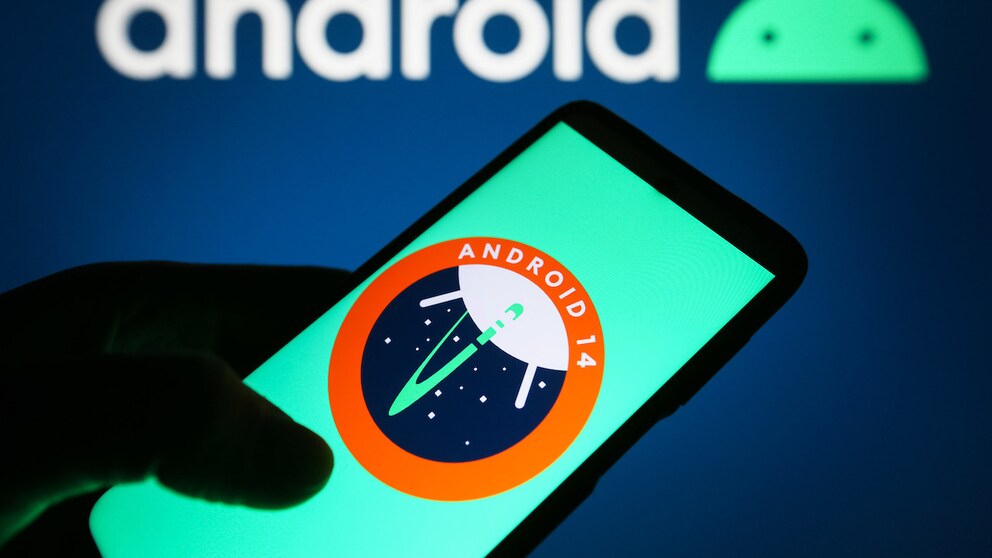
Additionally, since version 5.0 Lollipop, the Android operating system regularly includes a small Easter egg that is activated by tapping multiple times on the Android version. In the current Android 14, a logo appears that resembles the Bugdroid–Android’s mascot–and a spaceship. If you hold the symbol longer, a small spaceship appears that you can steer through the black space. The upcoming Android 15 is also expected to include an Easter egg alongside new features.