


December 25, 2024, 8:02 am | Read time: 5 minutes
Setting up a new Android smartphone isn’t difficult. However, there are some important points to consider.
If you’ve bought a new Android smartphone, be cautious during setup: This is where the groundwork is laid for what the operating system can and cannot do later. Therefore, you shouldn’t be too quick to allow all requested accesses. TECHBOOK editor-in-chief Rita Deutschbein reveals what to keep in mind during setup.
Overview
Setting Up an Android Smartphone – First Steps
The first steps are quite simple: Unpack the smartphone, insert the SIM card and, if necessary, a memory card, and activate the phone. Make sure both the new and old devices are sufficiently charged. After starting, the Google setup assistant appears, which you basically just need to follow to properly set up your Android smartphone.
Privacy and Internet Connection
First, you need to read and confirm the terms of use and privacy policy. Take some time for this, as they are usually extensive. Once that’s done, you can proceed with the actual setup of the Android smartphone.
The device will first want to establish an internet connection–either via Wi-Fi or mobile network. The system needs this access to link the Google account and possibly install apps later. Select the appropriate Wi-Fi network from the list and enter the password.
Also interesting: 10 hidden Android features you should know
Copying Data from the Old Smartphone to the New One
The smartphone will ask if you want to copy data or apps from the old device to the new one. Apps, contacts, photos, and SMS will be transferred. You can specify which data to copy and transfer by checking the appropriate boxes.
If users decide to do this, they must follow the instructions on the display. However, it’s important that the smartphone remains connected to the internet during the process so that the backup can be loaded.
Properly Setting Up Google Account and Services
Once that’s done, it’s time to set up the Google account. You’ll need your email address and password. This step can technically be skipped, but the Google account should later be set up under “Account” in the settings on the Android smartphone to fully utilize the device. As Google writes, it’s recommended to log into the account on the old device for the process. This way, account names can be displayed directly during the transfer, allowing you to choose which one to transfer.
Also interesting: Using an Android smartphone without a Google account
Android will then ask for some permissions and settings. First, users must indicate whether they want to enable GPS and send anonymized user activities to Google.
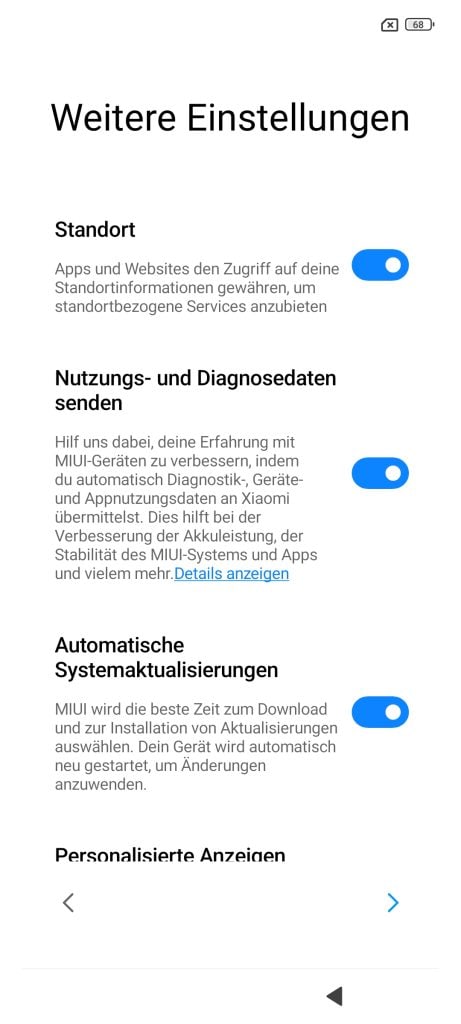
It’s advisable not to check any boxes initially. You can always grant GPS access to selected apps later. However, you must confirm the privacy policy to proceed with the setup process.
The next step in setting up an Android smartphone involves device security. Most smartphones have a fingerprint sensor as an alternative to a PIN or password. Some also use facial recognition. If users want to register their fingerprint or scan their face, they must follow the instructions on the smartphone. Generally, it’s better to avoid using a swipe pattern for security, as it’s considered relatively insecure.
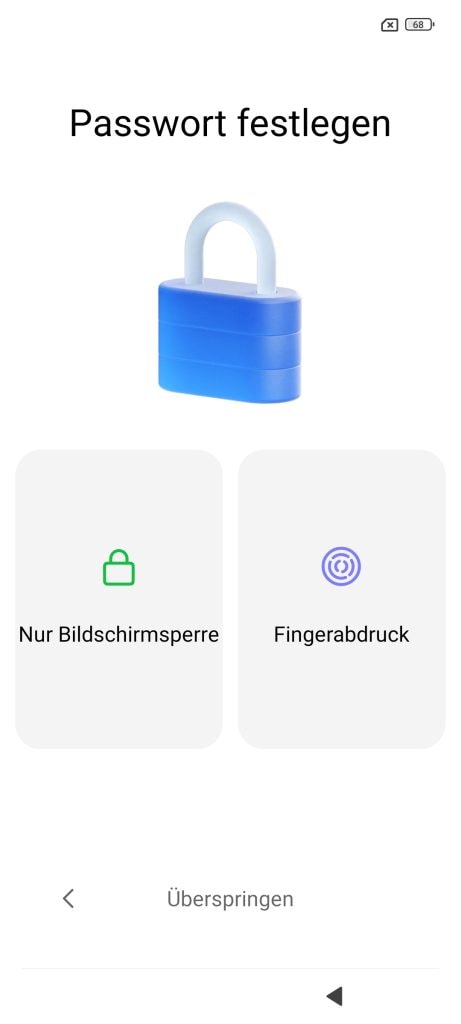
If you wish, you can set up the “Hey Google” voice assistant and add a credit card for mobile payments after this step. Both can also be done later through the settings. Once that’s completed, the Android smartphone is fully set up and ready for use.
Android Smartphone Set Up – What Now?
Once the Android smartphone is fully set up, users should set it aside for a few minutes. The device downloads apps and settings, which can take some time depending on the manufacturer and its default settings. Caution! The phone may make sounds frequently during this process. It’s best to mute it.
Delete Apps or Not?
Apps you don’t want to use should ideally be uninstalled by smartphone owners right away–they can be reinstalled and set up on the Android smartphone later if needed. There’s little fear of deleting system-relevant apps. Android now allows you to disable them at most, but not uninstall them.
In case of doubt, it’s best to leave apps from the manufacturer, such as those with Samsung, Google, or Xiaomi in the name, untouched. However, apps like “Booking,” “Facebook,” “Ebay,” or similar can be deleted without issue. The same goes for games you don’t need. Whether you need to uninstall apps at all depends on the manufacturer of the Android smartphone, as they pre-install varying numbers of apps on their devices.
Manage Permissions
Since Android 6.0, users can restrict app permissions and should do so under “Apps/Settings/App Permissions,” experts recommend. No app should access contacts, location, phone, or SMS without a valid reason.
Because Google collects a lot of information about connected devices and their usage by default, it’s advisable to make adjustments. Experts recommend disabling the activity history as the most important step. This can be done on the page under “Personal Data & Privacy/Manage Google Activities/Access Activity Settings” after logging into your Google account.