


January 5, 2021, 10:39 am | Read time: 2 minutes
In this series, TECHBOOK presents the best Android hacks and tricks–with video and detailed instructions.
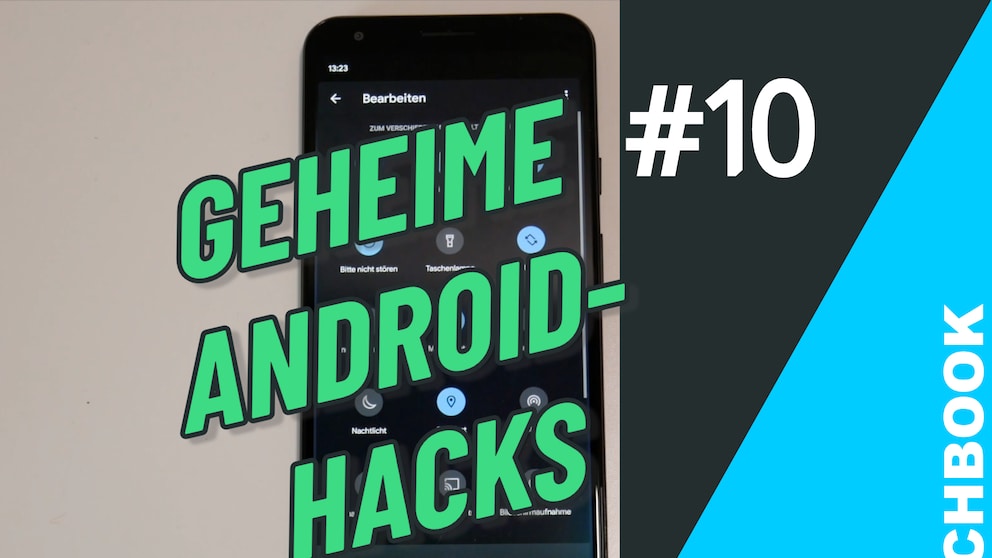
The Android operating system, developed by Google, is the most widely used in the world. Seventy percent of all smartphones today run on Android. The OS has now reached its eleventh generation, and with each new generation, it has gained new features–some of which are quite well hidden. In the “Android Hacks” series, TECHBOOK showcases the best and most practical of these features. In part 10, you can see how to customize quick settings in Android.
How Android Quick Settings Work
1. Pull the notification bar all the way down to reveal all quick settings.
2. Click on the small pencil icon at the bottom left to edit the settings.
3. At the bottom, icons that do not appear in the quick settings will be displayed. Choose one of these options–such as dark mode–and drag it up into the quick settings.
4. If it’s a feature you want to use more frequently, you can drag the icon even further up. Place it among the first five to six icons (depending on screen size) in the list, and the feature will always be displayed when you pull down the notification bar.
The next part of the Secret Android Hacks series will cover splitscreens, which allow you to use two apps simultaneously.