



March 16, 2023, 11:43 am | Read time: 3 minutes
Some hotline calls again, and yet another SMS with a mysterious package notification–unknown numbers can be really annoying. But there are ways to combat this on your smartphone.
Spam calls and messages are unfortunately very widespread. Once your number lands on a scammer’s list, it’s hard to get rid of the annoying attacks. Fortunately, both Android and iOS offer different ways to block unknown or unwanted contacts. TECHBOOK shows you how it’s done.
Overview
Block Contacts on Android Smartphone
In Android, there are several ways to block calls and messages from individual numbers or unknown numbers in general.
Our video guide shows you how to block them quickly:
1. Method: Block Individual Contacts
Open the Phone app and click on the three-dot menu in the top right corner. Click on the Call Log option.

Now select a contact or an unsaved number you want to block. A menu will appear; tap on the Block/Report Spam option.

The OS will now ask if you really want to block the number–confirm with Block. You also have the option to report the number as spam. This can help identify and block this sender as untrustworthy. If that’s the case, check the box for Report Call as Spam before blocking.

2. Method: Block Calls from Unknown Numbers
Spam calls and messages usually come from unknown numbers. Android offers the option to block these from the start. But be careful, as this will also block calls and messages from friends or acquaintances with new numbers or other important contacts that aren’t saved.
- Open the Phone app and click on the three-dot menu
- Select the Settings option
- Scroll to the Blocked Numbers entry
- Toggle the slider for Unknown
In the same window, you can also add individual numbers to the block list by clicking on Add Number and entering the respective number.
Many Android manufacturers also offer additional features for blocking numbers. Under the Blocked Numbers option, you often find settings like blocking private numbers, certain words in SMS, and even blocking an entire area code.
Block Contacts on iPhone
iOS also offers several ways to block calls and messages from individual numbers. You can also silence unknown callers in general.
1. Method: Block Individual Contacts
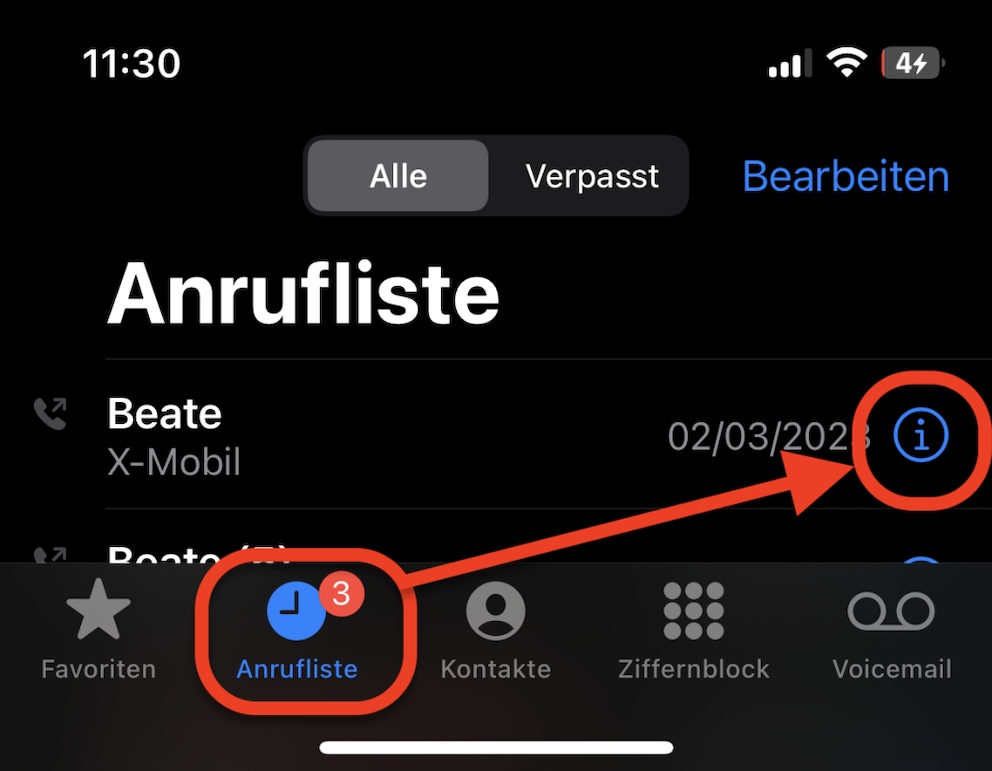
Open the Phone app and click on the Recents tab. Now select a contact or number you want to block by tapping the “i” on the right edge.
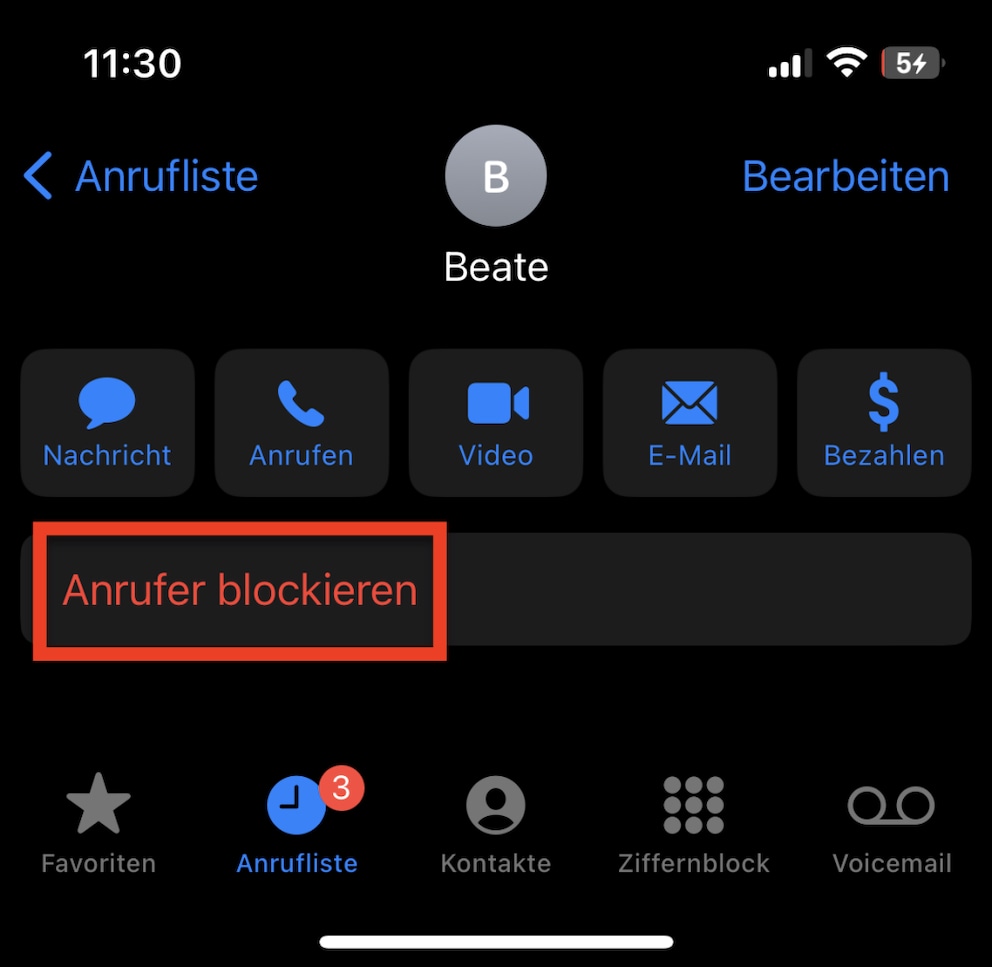
Scroll to the bottom of the page and click on Block this Caller. Confirm the selection in the pop-up with Block Contact.
2. Method: Silence Unknown Callers
iOS also allows you to silence unknown numbers directly and send them to voicemail. However, this means that calls from friends or acquaintances and other important contacts won’t get through either.
- Open Settings on the iPhone
- Find the Phone entry from the list of options
- Select the Silence Unknown Callers option
- Toggle the slider for Silence Unknown Callers
As with Android, you can also manage the Blocked Contacts list in the phone settings. Click on Add New… and then select entries from the list.