

October 18, 2019, 9:44 am | Read time: 3 minutes
Tired of annoying telemarketing, surveys, or bot calls? An update in iOS 13 silences unwanted calls from unknown numbers in seconds.
“Calls from unknown numbers are directly blocked, sent to voicemail, and stored in the missed calls list,” Apple explains.
Part of the new Apple update is a brand-new feature for the iPhone that makes annoying spam calls from strangers a thing of the past. The latest version of the iOS software includes a setting that allows calls from unknown numbers to be automatically silenced. In iOS 13, there is now the option to “Filter Unknown Senders.” By activating this option, you can block “direct” calls from people you don’t know.
Numbers that the user has never contacted and are not saved in their contact list are immediately blocked. If the iPhone owner has previously communicated with someone via text message or if the number was shared in an email, the call from that number will not be blocked.
Direct to Voicemail
This handy device setting sends all calls from unknown numbers directly to voicemail. Incoming calls are not displayed on the phone, so they can’t disturb the user—aside from a notification about new voicemails.
If the iPhone can find a number in the Mail, Messages, or Contacts apps, the call will go through. If not, the caller is automatically rejected. When a call comes in, the caller’s number is compared with the list of phone numbers in third-party spam apps. If there’s a match, iOS displays the label set by the app, such as “Spam” or “Telemarketing.” If the app identifies a number as spam, it may automatically block the call. If the user identifies a call as spam, they can manually block the number on the device. Manually blocked numbers are listed under “Blocked Contacts.”
In the worst-case scenario, users risk missing important calls if this feature is enabled. Before activating the new option, users should ensure all important contacts are saved on the device to avoid missing crucial calls.
After an emergency call, “Filter Unknown Callers” is temporarily disabled for the following 24 hours to ensure the iPhone is reachable.
Also of interest: Update to iOS 13.1.2 – Apple can’t even flashlight anymore
How to Activate the New Feature
First, you need to update to iOS 13. The system version can be easily checked in the system settings. The information is found under: General > Software Update. If the phone needs to be updated beforehand, consider backing up your data if no current backup is available.
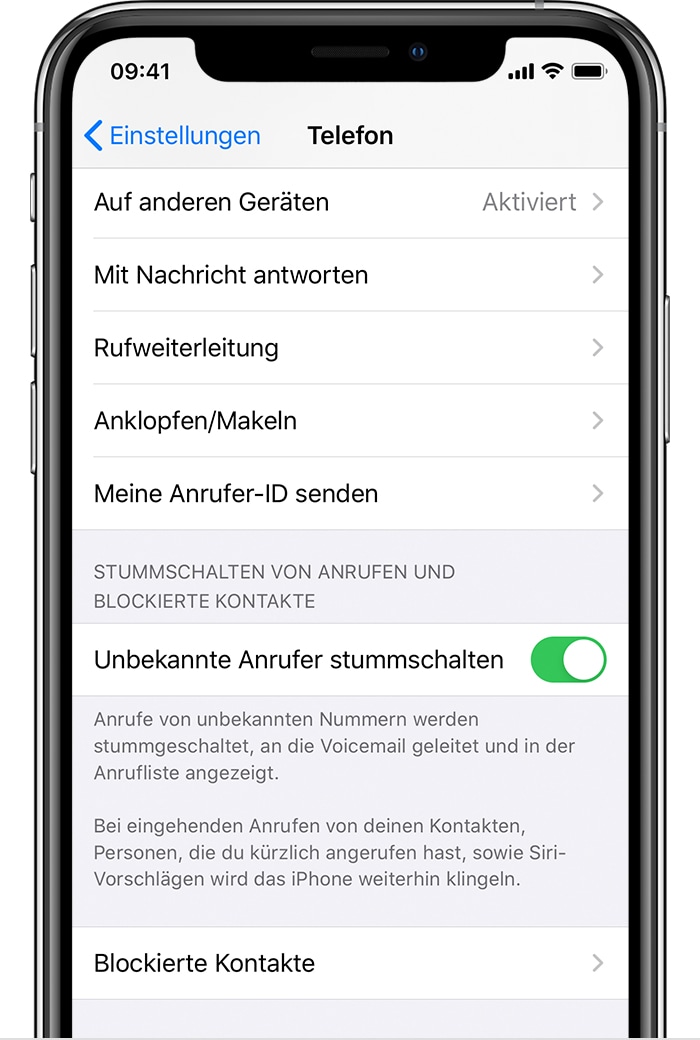
Photo: Apple.com
After the necessary update is completed, the new feature can also be found under: Settings > Phone. Simply scroll down to the “Silence Unknown Callers” option and activate the corresponding button.