


January 23, 2023, 5:15 pm | Read time: 2 minutes
Google’s game streaming service Stadia is history. But the controller can be repurposed for continued use with a small program. Here’s how.
As of January 18, Google’s video game streaming service Stadia has been shut down. However, the controller for the service doesn’t belong in electronic waste. It can still be used with other devices via a USB cable. And with a software update, it can also be used wirelessly via Bluetooth.
Activate Bluetooth on the Stadia Controller
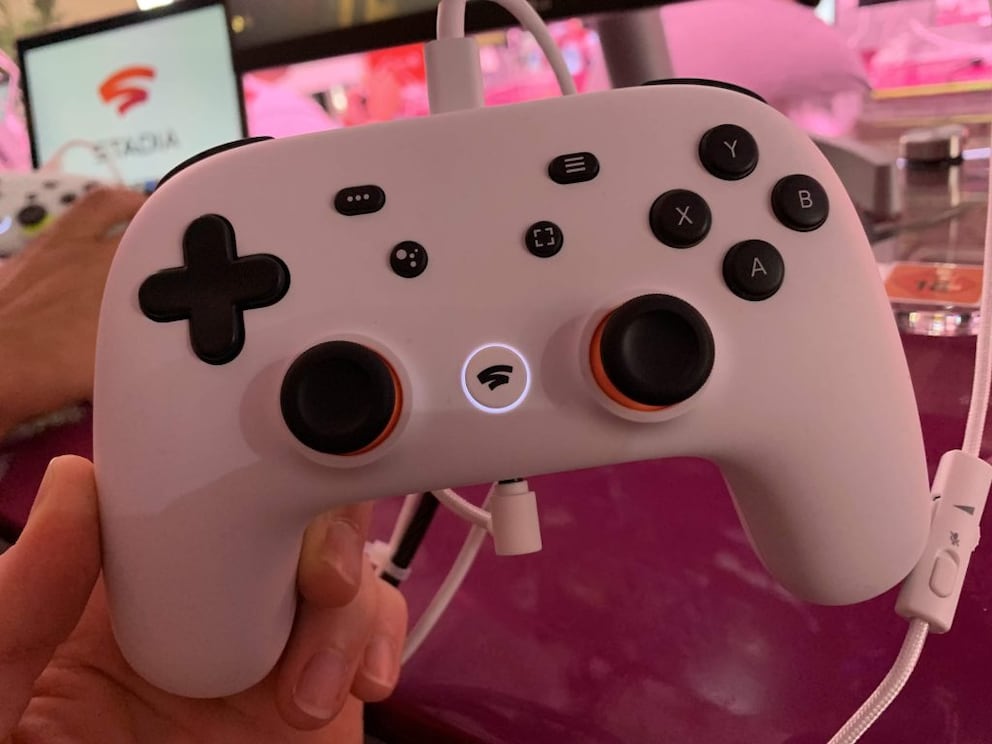
- Charge and connect: Charge the battery to at least 10 percent and connect the controller to the computer via a USB cable.
- Start the update: Now open the Chrome browser, or alternatively Microsoft Edge, and visit the update page. Select the option “Switch to Bluetooth mode.” Then accept the terms and proceed.
- Unlock the controller: Once the computer recognizes the controller, select it and activate it by clicking “Connect.” This requires some dexterity. To unlock the controller, first unplug the USB cable, then plug it back in while holding the three-dot button. Next, press the three-dot button, assistant button, Y, and A simultaneously.
- Install the software: After the download is complete, the new firmware will be installed. You need to select the previously recognized controller, now called “USB-Composite Device.” Once the update is fully installed, the Stadia controller can be wirelessly paired via Bluetooth with many computers, smartphones, and tablets. A list of compatible devices is available at Google Support.
- Important note: According to Google, enabling Bluetooth mode cannot be undone. Additionally, the firmware must be installed by the end of 2023. Once the update is installed, the controller can be put into pairing mode by pressing the Stadia button and Y simultaneously. There is also a limitation: In Bluetooth mode, the Stadia controller does not output audio signals through the headphone jack. This is only possible with a USB cable connection.